
Adding content to library during review
Custom clauses and notations created during document review can be added directly to the library for reuse in future reviews.
How do I add content to the library?
When reviewing a document:
- Create a custom clause or notation
- Look for the green "Add to clause library" button at the bottom of the entry's card
- Click the button to add the entry to the library
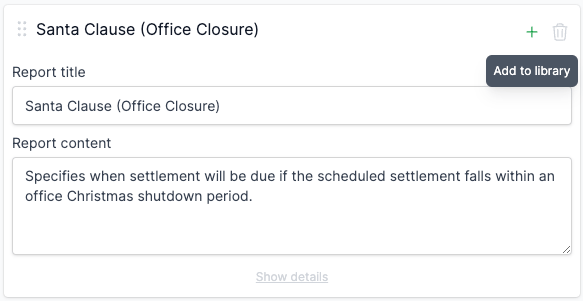
Where can I add content from?
Content can be added to the library from:
- Custom clauses on the Special Conditions tab
- Custom notations on the Title Search tab
When does the Add to Library option appear?
The "Add to clause library" button appears when:
- The user has library access
- The entry is custom (not from library)
- The entry has not been added to library
What happens when content is added?
When added to the library:
- The entry is set as active
- All content is transferred including:
- Report title
- Report text
- Comments
- Risk level
- Recommendations
- For notations, the plan type is set to match the current document
- The entry is immediately available for use in other reviews
- No tags are initially assigned
FAQ
Can I save content to the Library during a review?
Yes, when can create custom Special Condition and Dealing entries during a review, you can choose to save it to your Library for future use. This is available to users with Library access only.
Does saving to Library affect existing reviews?
No, saving to Library creates a template for future use. The content in your existing reviews remains unchanged.
Who can see Library content I add?
Library content is shared across your account. All users with Library access can see and use items you add.
Can I edit Library content after adding it?
Yes, you can edit Library items from the Settings page. Changes apply to future uses only.