
Review navigation
How does the review interface work?
Curia's desktop interface features a three-column layout:
- Left column: Contains the form where document details and information are entered or reviewed
- Centre column: Displays the PDF document being reviewed
- Right column: Shows the internal notes panel (when enabled)
Curia also includes a mobile-optimised version for reviewing documents on smaller screens.
How do I use the review tabs?
The review process is organised into tabs that group related fields and correspond to different aspects of the contract review. The available tabs depend on your organisation's field configuration and the type of property being reviewed. Common tabs include areas for client information, parties, settlement details, title information, special conditions, and finalisation.
How do I navigate within the form?
Scrolling and tab navigation
- Scroll vertically through the form to view all fields
- You will be taken to the top of a tab when switching tabs
Section navigation
- Use the Previous and Next buttons at the bottom of each tab to move between review sections
- Jump directly to any tab by clicking on the tab name at the top of the page
How do I navigate the PDF document?
Standard PDF tools
The PDF viewer includes standard navigation tools:
- Scrolling: Navigate vertically through PDF pages
- Search: Find specific words or content within the document (works for non-scanned documents only)
- Zoom: Adjust the zoom level to increase or decrease document size
- Rotate: Rotate individual pages for better visibility
- Sidebar: View page thumbnails and jump to specific pages
Document map
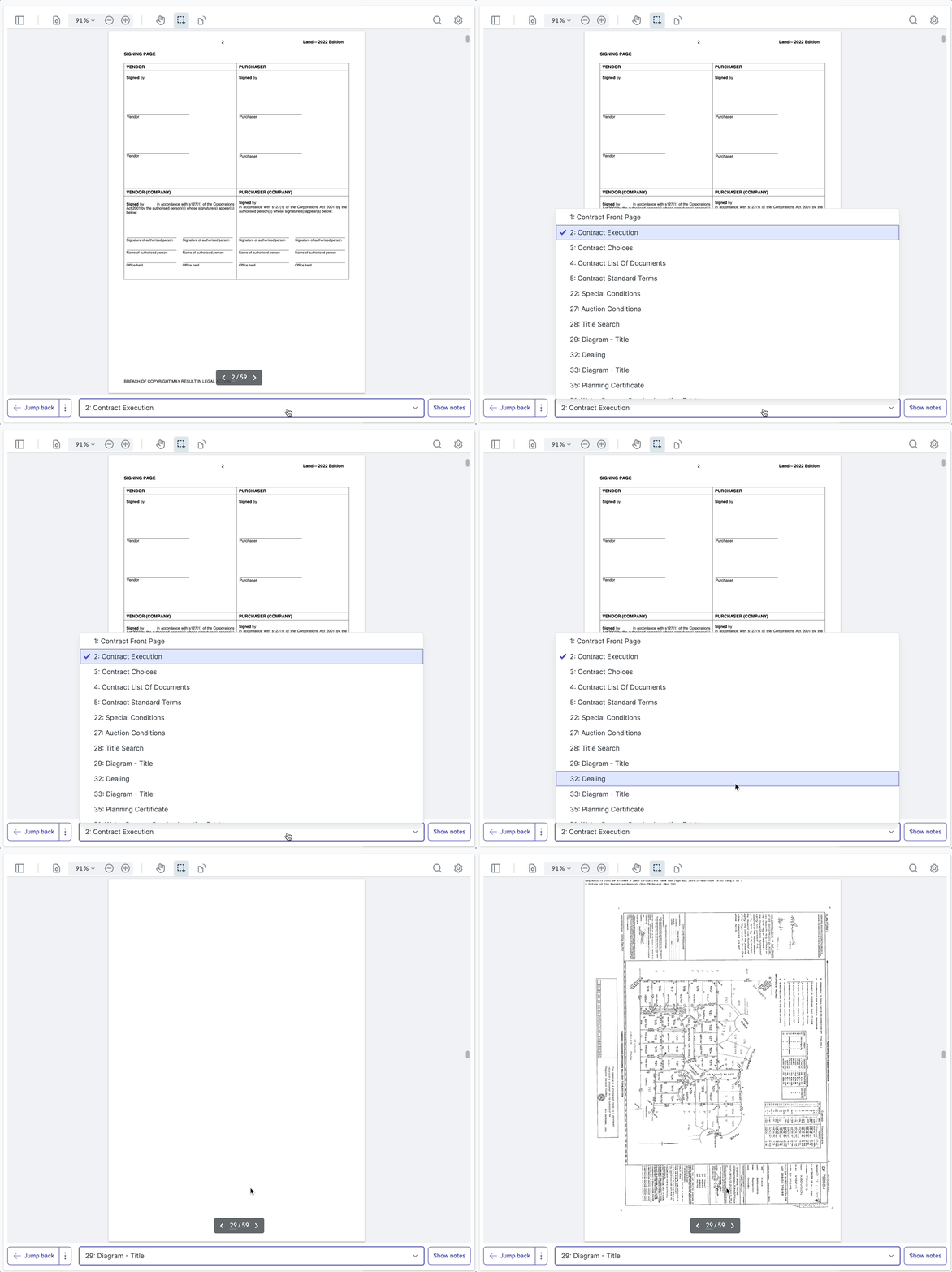
Use the document map dropdown to jump directly to specific sections of the contract:
- Select any section from the dropdown to navigate immediately to that part of the document
- Sections are automatically detected and labelled (e.g. "Front Page", "Special Conditions", "Title Search")
PDF jump history
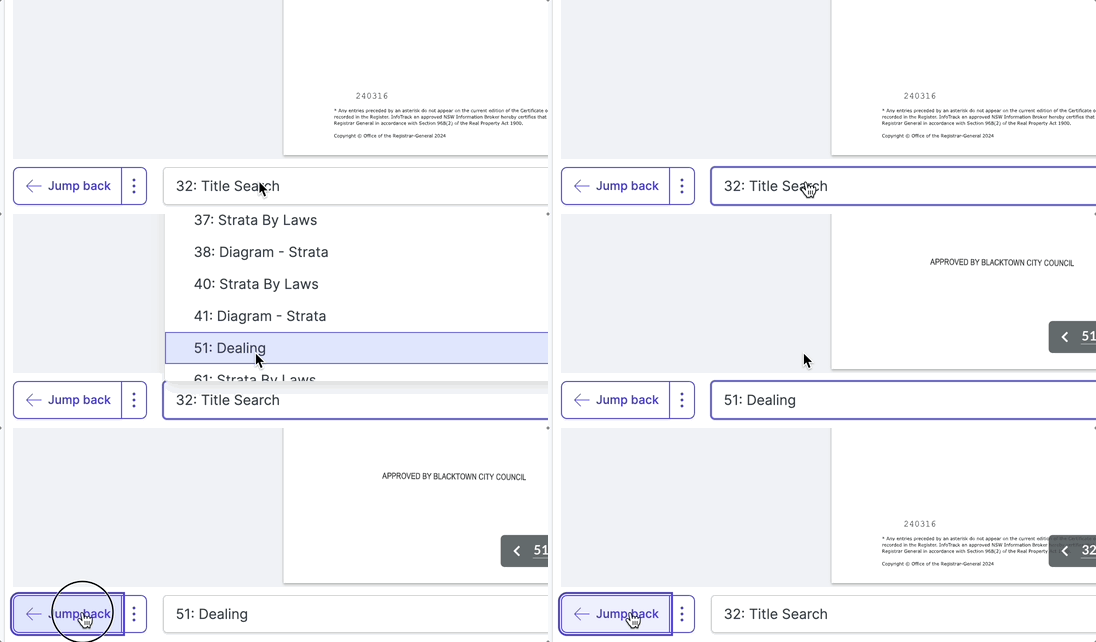
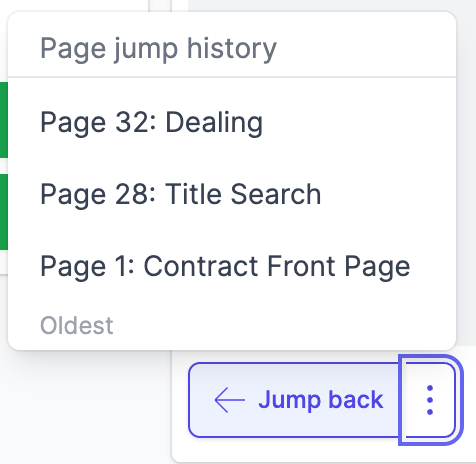
The jump history feature helps you navigate efficiently between different sections of the document:
- Jump back button: Returns you to the most recently visited section
- History dropdown: Shows the last 5 sections you've jumped to using the document map, with page numbers and section names
- History is only created when you use the document map to jump between sections - normal scrolling doesn't add entries
- Example: When reviewing easements and jumping to the title search to verify details, you can easily return to the specific easement page without remembering page numbers or scrolling through the document
How do I use the internal notes panel?
For information about using internal notes during contract review, see Internal notes.
What hotkeys are available for navigation?
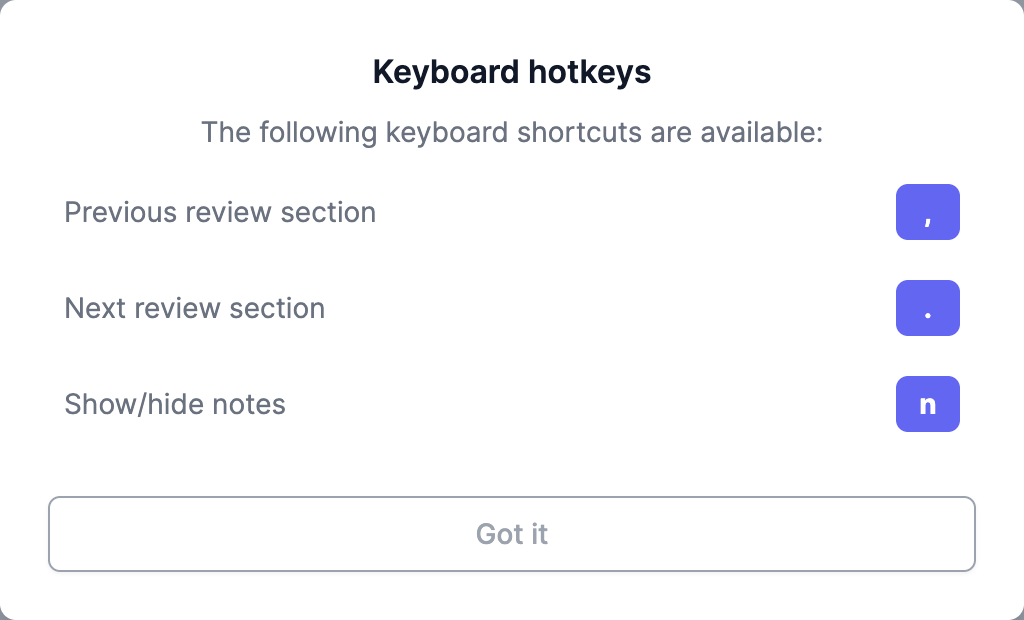
Open the "Hotkeys" link in the left navigation to see all keyboard shortcuts.
- Comma (,): Move to the previous review section
- Period (.): Move to the next review section
- N: Toggle the internal notes panel visibility
Note: Keyboard shortcuts only work when you're not actively typing in a form field.
How do I navigate on mobile?
Curia includes a mobile-optimised version that adapts the interface for smaller screens, with the document and form sections organised into separate tabs for ease of use.
FAQ
How do I navigate between sections?
Use the tab bar at the top of the page to switch between Review sections. You can also use the Previous and Next buttons at the bottom of each tab, or press comma (,) and period (.) on your keyboard.
Can I jump to a specific page in the Document?
Yes, use the Document map dropdown to jump to specific sections, or use the PDF viewer's sidebar to view page thumbnails and click on any page.
How do I find a specific Field?
Fields are organised into tabs based on their category. Use the tab bar to navigate to the relevant section (e.g., Title, Parties, Exchange) where the Field is located.
What keyboard shortcuts are available?
Press comma (,) to go to the previous section, period (.) to go to the next section, and N to toggle the notes panel. Shortcuts only work when you're not typing in a form Field.