
Reassign document to another user
You can assign or reassign documents to other users in your organisation from the Reviews page. This article explains how to change document assignments and what happens when a document is reassigned.
How can a document be assigned?
To assign a document to another user:
- Navigate to the documents page.
- Locate the document you wish to assign.
- Click the dropdown menu associated with the document in the table.
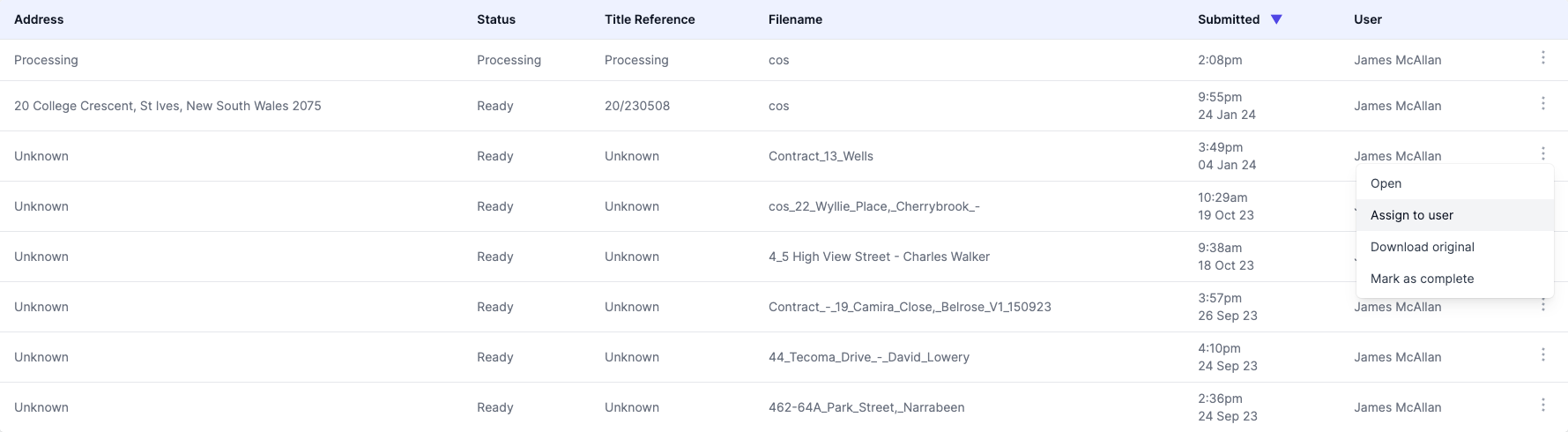
- Select "Assign to user" from the dropdown options.
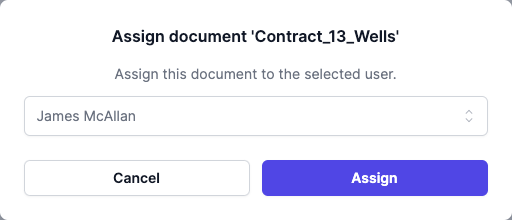
Who can a document be assigned to?
A document can be assigned to any user within your organisation.
Can multiple documents be assigned at once?
- Only one document can be reassigned at a time.
Can a document have multiple users assigned?
A document can only have a single user assigned at any given time.
How is the user notified?
Upon assignment, the selected user will receive an email notification informing them about the document assignment.
FAQ
Who can reassign documents?
All users with access to Documents can reassign a Document.
Does the new assignee get notified?
Yes, the newly assigned user receives a notification when a document is reassigned to them.
Can I reassign multiple Documents at once?
Reassignment must be done one Document at a time.
What happens to the previous assignee's work?
All review data is preserved when a document is reassigned. The new assignee continues from where the previous user left off.