
Upload and assign new contracts
How do I upload a single document?
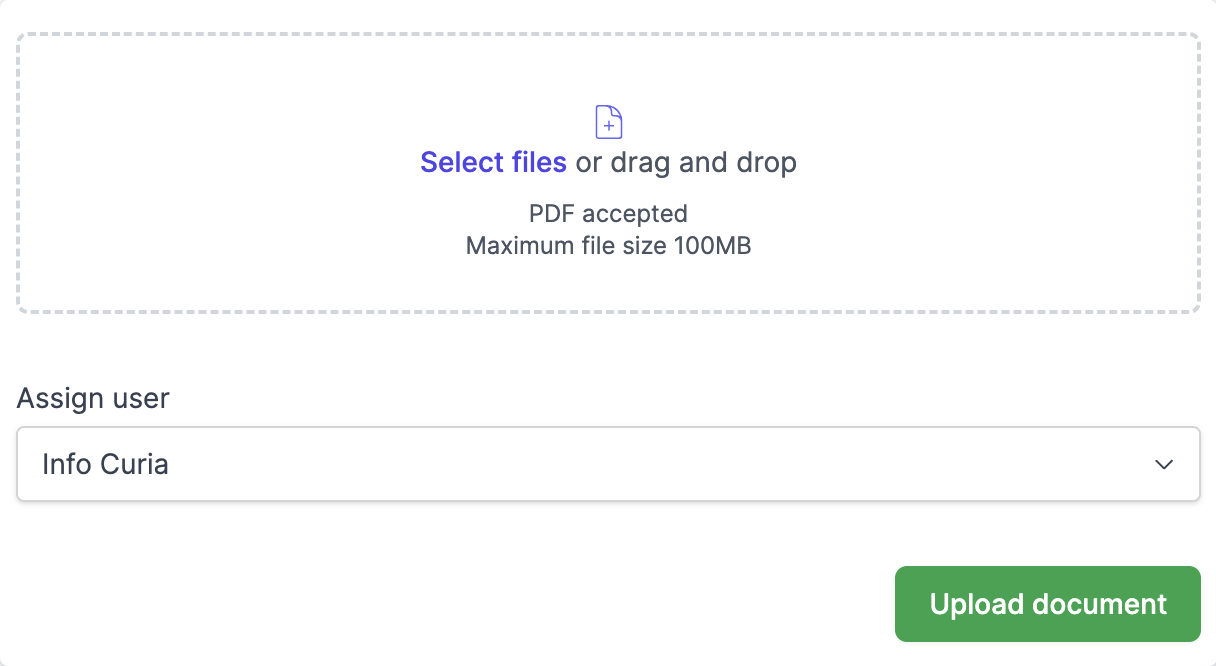
To upload a single document:
- Click "New review" in the header (accessible from any page).
- Click "Upload a file" and select a file, or drag and drop your PDF into the upload box.
- Select the user to assign the review to from the dropdown menu.
- Preview the document in the viewer on the right.
- Click "Upload document" to begin processing.
How do I upload multiple documents?
Use multi-file upload when you have received a contract that has been split into separate PDF files. This is useful when:
- An agent or vendor's solicitor has broken an original larger PDF into separate pieces to share via email due to email size limits.
- There are so many pages in a long PDF that the original has been split into multiple files for easier handling.
To upload multiple documents:
- Click "New review" in the header (accessible from any page).
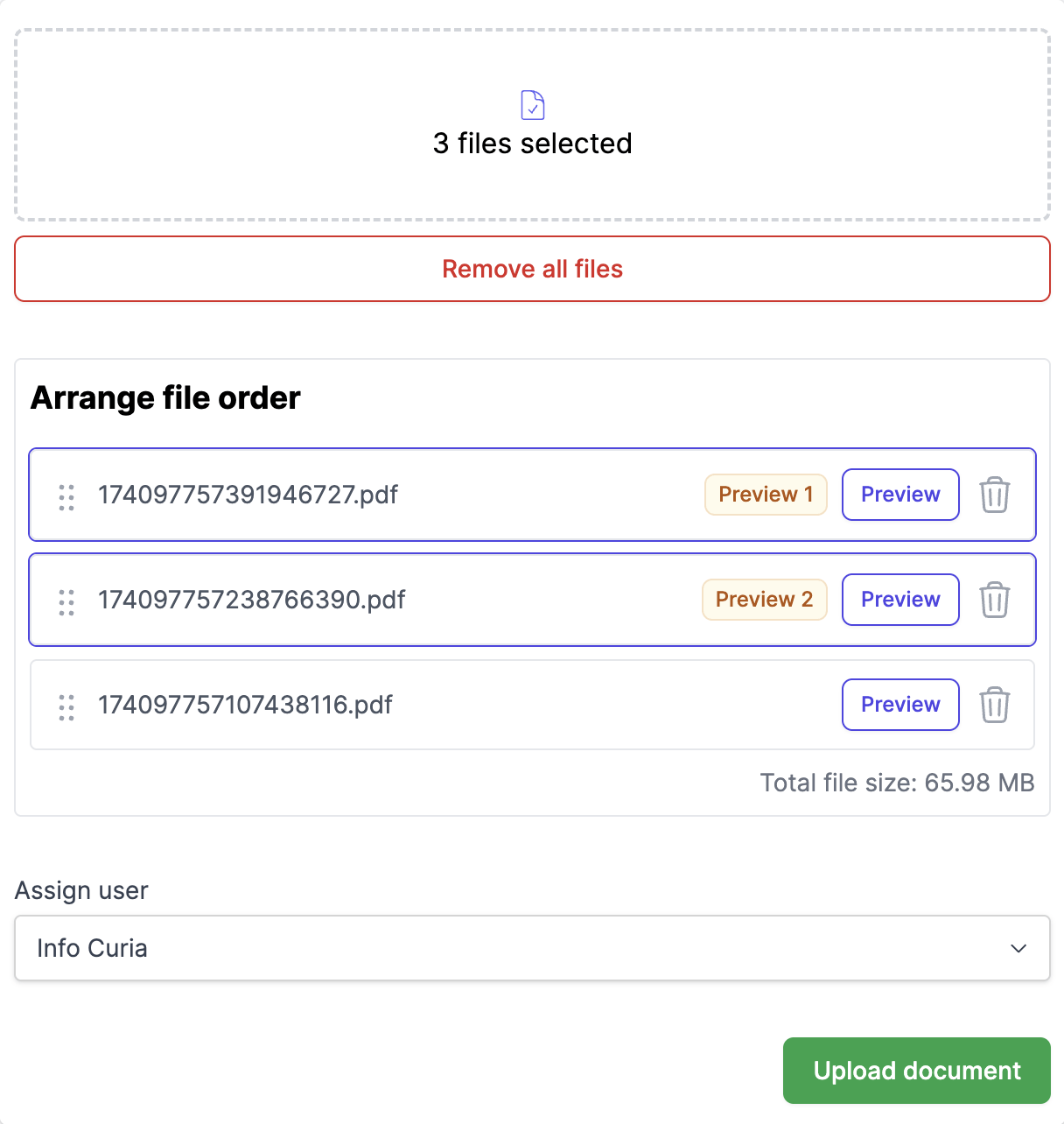
- Click "Upload a file" and select multiple files, or drag and drop multiple PDF files into the upload box.
- Curia automatically switches to comparison preview mode when two or more files are selected.
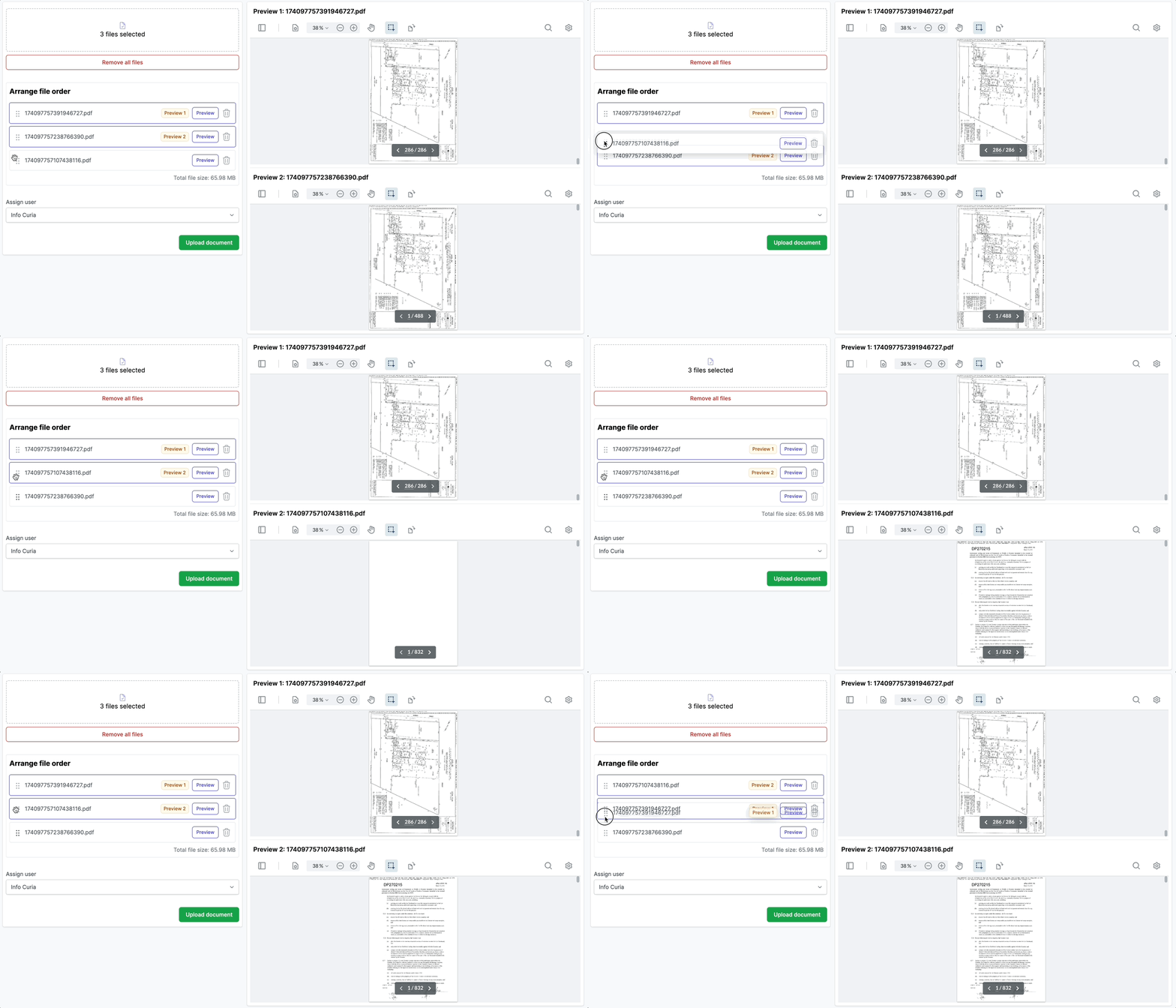
- Arrange the files in the correct order using the drag handles.
- Preview the document joins between consecutive files in the dual viewer.
- Select the user to assign the review to from the dropdown menu.
- Click "Upload document" to begin processing.
The goal is to ensure the document pieces are correctly ordered from start to finish. This is especially important when the document names don't reflect the order. For example, files might be named "asjufub.pdf" and "eubauw.pdf" rather than descriptive names like "File part 1" and "File part 2".
How do I arrange document order?
Proper document order is essential to ensure correct processing of the combined contract. To reorder your documents:
- Use the drag handles next to each file name to reorder documents.
- Drag files up or down to arrange them in the correct sequence.
- The files marked with "Preview 1" and "Preview 2" badges show which documents are currently displayed in the preview viewers.
- Reorder files to see different document joins in the preview.
- Delete a file by clicking the Bin icon.
The document pieces should be ordered according to the original complete contract to ensure correct processing by Curia.
How do I preview documents before uploading?
The preview functionality helps you verify document content and order before uploading.
Single document preview
- When one file is selected, the document appears in a single preview viewer.
- Use standard PDF viewer controls to navigate through the document.
Multiple document preview
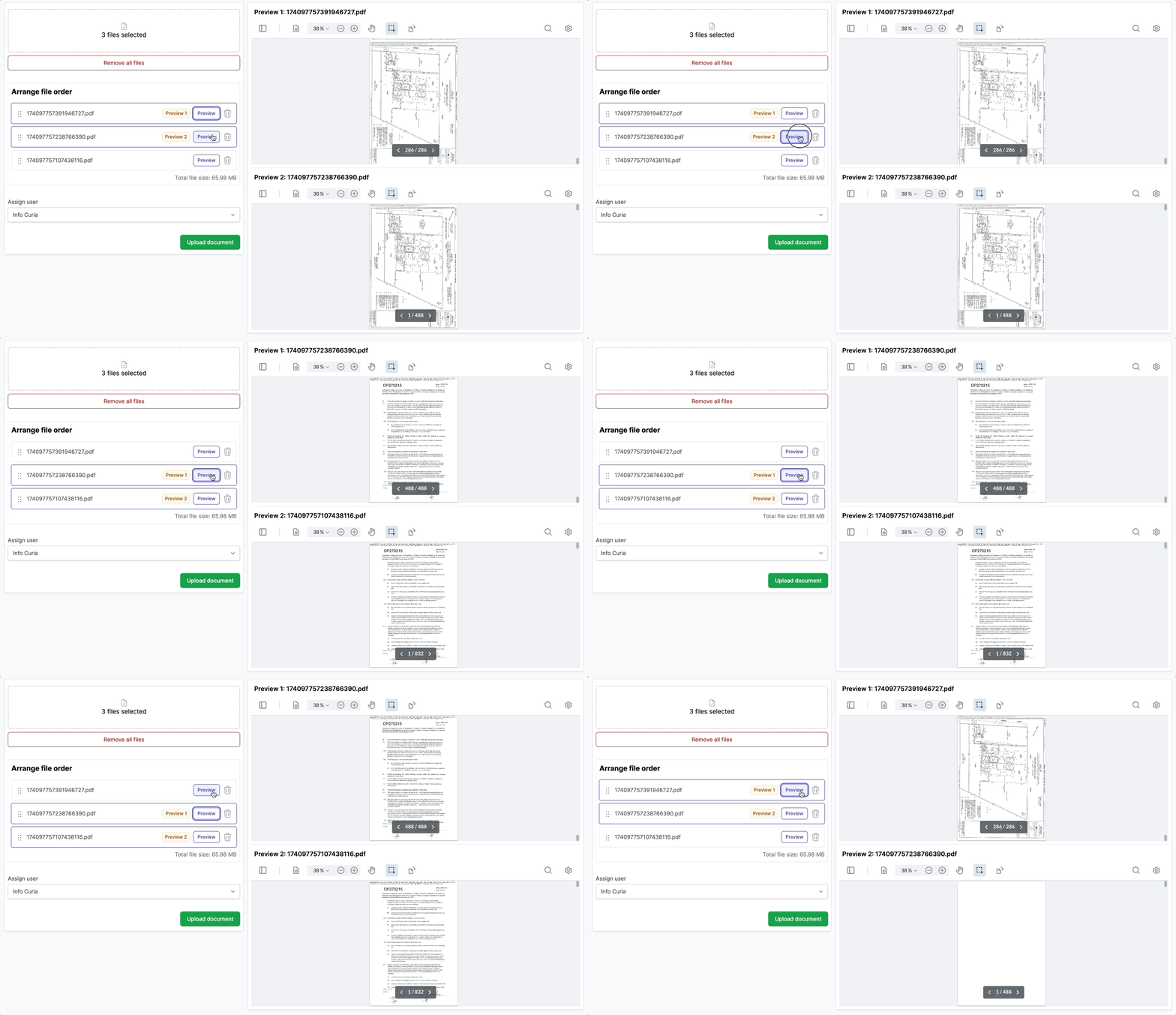
- When two or more files are selected, Curia shows a dual preview with "Preview 1" and "Preview 2" viewers.
- Preview 1 displays the last page of the first document in the pair.
- Preview 2 displays the first page of the second document in the pair.
- This allows you to confirm the continuation between consecutive documents.
- Click the "Preview" button next to any file to view that specific document join.
- Reorder files to preview different document joins.
What type of files can I upload?
Curia has specific requirements for uploaded documents:
- File type: PDF files only.
- File limit: Maximum of 10 documents per upload.
- Size limit: Combined total size of all files must not exceed 100MB.
- File content: Documents must not be password-protected or encrypted.
Curia displays the total file size when multiple documents are selected.
What happens after I upload documents?
After uploading your documents:
- Curia begins processing and analysing the document content.
- The assigned user receives an email notification when the document is ready for review.
- The assigned user can access the document from the documents page to begin the review process.
FAQ
What file types can I upload?
Curia accepts PDF files only. The PDF must be readable (not password-protected) and should be scanned at 300 DPI or higher for best results.
What is the maximum file size?
The combined total size of all files must not exceed 100MB. If your files exceed this limit, try compressing them or splitting into smaller documents.
Can I upload password-protected PDFs?
No, Curia cannot process password-protected PDFs. Remove the password protection before uploading.
Who receives the notification after upload?
The assigned user receives an email notification when a Document is uploaded and assigned to them.
Can I upload multiple files if the contract was provided in separate parts?
Yes. If the real estate agent or vendor's solicitor provided the contract as separate PDF files, you can upload all files at once. Curia will combine them into a single Document for review. Use the drag handles to arrange the files in the correct order before uploading.