
Field functionality
What are the common field functionalities?
Fields in Curia may include the following functionalities:
- Page number: References the specific page number related to the field.
- Reference: Optionally specifies a clause number or location for the content relating to the field (e.g., "12.2").
- Risk: Indicates the level of risk (high, medium, or normal) associated with the field. The risk level can be used to alter the rendering of fields in your report/letter of advice.
- Comment: Allows you to add additional notes or observations, which can be used for document-specific or client-specific information.
- Recommendation: Provides optional client recommendations related to a specific field, consisting of two parts:
- Amendment: Communicates a requested change to the vendor's solicitor in legal language (Example: For a delayed settlement interest rate: "Reduce the amount to 8%").
- Recommendation: Communicates the requested amendment to your client in simple, non-technical language (Example: For a delayed settlement interest rate: "We recommend the vendor reduce the interest rate for any delay in settlement to a more reasonable 8% pa.").
- Images: Allows for uploading or capturing images related to the field content.
How do fields display information?
Fields in Curia can be in different states:
- Required fields: A value must be provided and the report cannot be downloaded until all required fields are satisfied. These fields display "Required" in the top-right corner and are always visible.
- Optional fields: Can be expanded or collapsed using the visibility toggle.
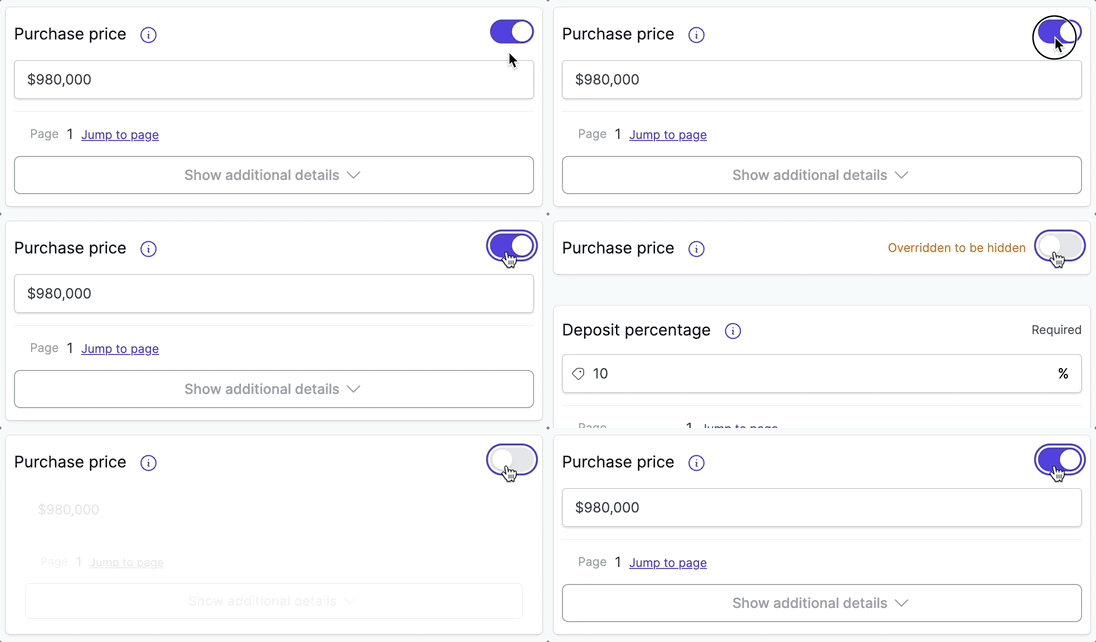
How do I control field visibility for optional fields?
Optional fields use a toggle switch to control whether they are expanded or collapsed:
- When toggled on: The field is expanded and a value must be provided.
- When toggled off: The field is collapsed and no value is required.
Example: Purchase price field
- If the purchase price is known, toggle the field on and enter the purchase price.
- If the purchase price is unknown or undecided, toggle the field off.
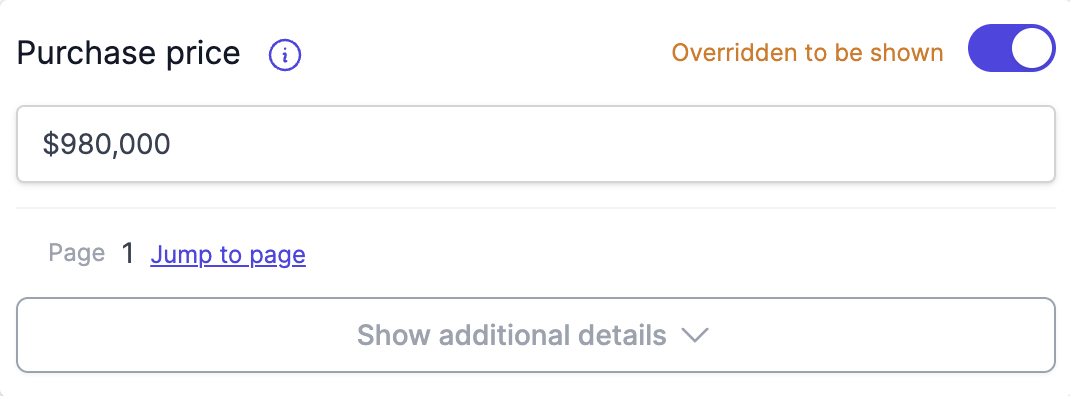
The toggle displays different status text to indicate the current state:
- "Not detected" when the field was not found in the contract and is currently collapsed.
- "Overridden to be shown" when manually enabled despite not being detected.
- "Overridden to be hidden" when manually disabled despite being detected.
How do I override the detected state?
Curia automatically detects information from contracts and pre-fills field values where possible:
- When information is found: The field will be automatically enabled and the value pre-filled.
- When information is missing: The field will show "Not detected" and remain collapsed by default.
- Manual override: You can manually show fields that weren't detected in the contract, or hide fields that were detected by using the visibility toggle.
This allows you to customise which fields appear in your review based on the specific requirements of each contract.

How do I access additional field details?
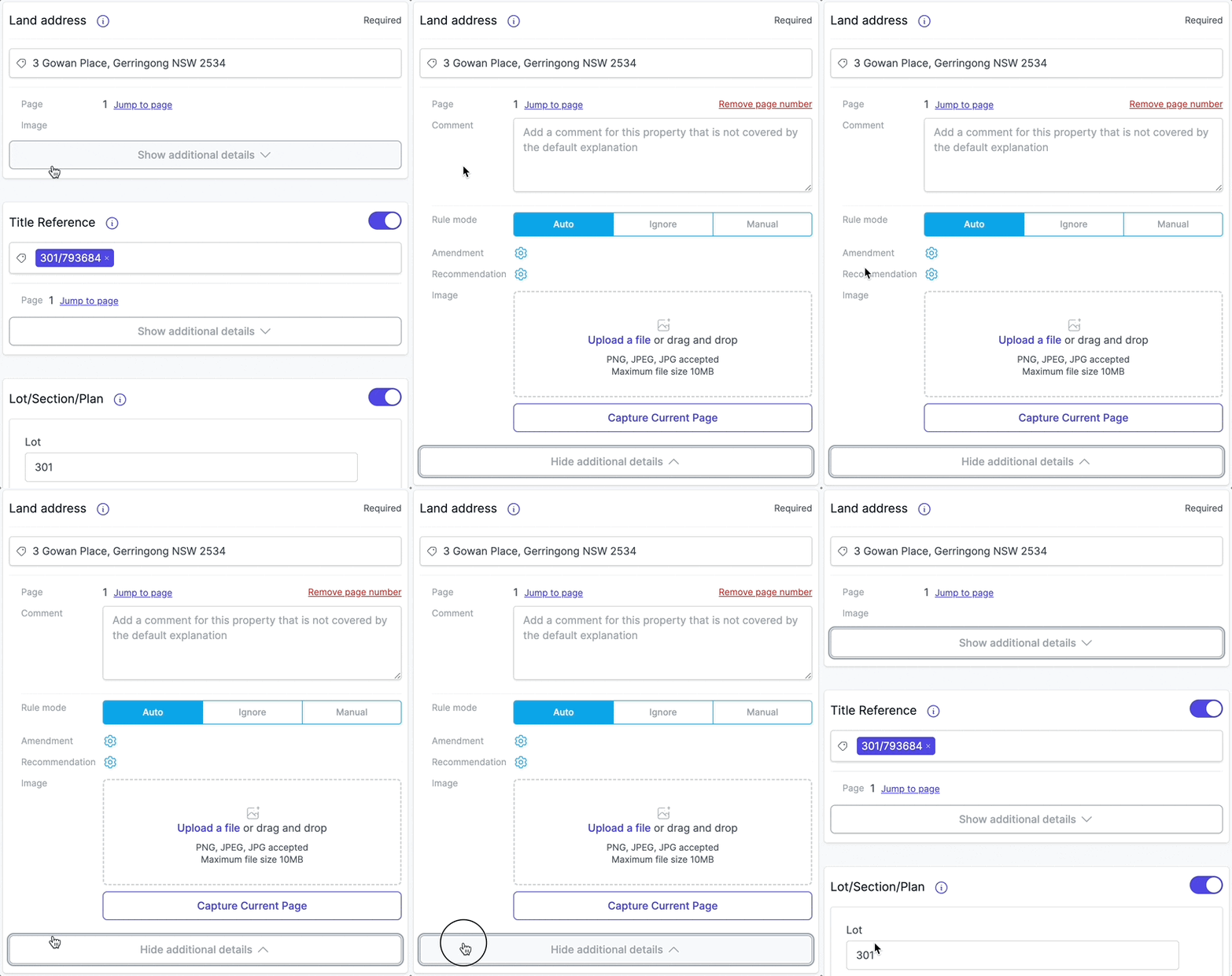
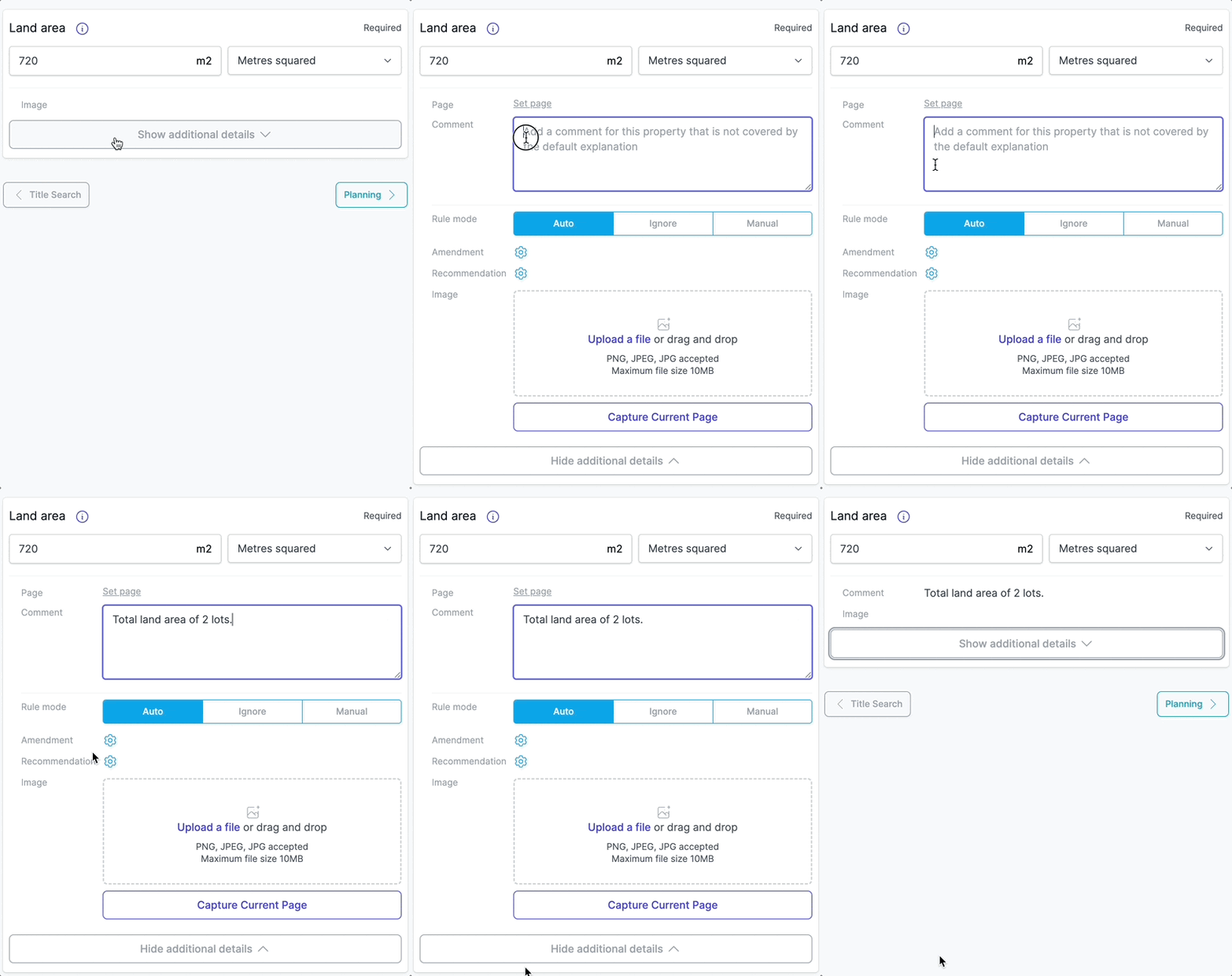
- Click "Show additional details" at the bottom of any field to expand it and access all functionality options.
- Click "Hide additional details" to collapse the field back to its summary view.
- The additional details section includes page number, reference, comment, risk, recommendation, and image functionality (where available for that field).
How do I use the page number functionality?
Page numbers are an important feature in Curia that serve multiple important purposes:
- Automatic extraction: Page numbers are automatically added when data is extracted from the contract during the initial processing.
- Amendment requests: When set, page numbers appear in amendment requests sent to vendor's solicitors, providing precise references for requested changes.
- Client reports: Page numbers appear in your reports, helping clients quickly locate specific information in the contract. This is especially useful for Special conditions and Dealings sections where specific clauses need to be reviewed.
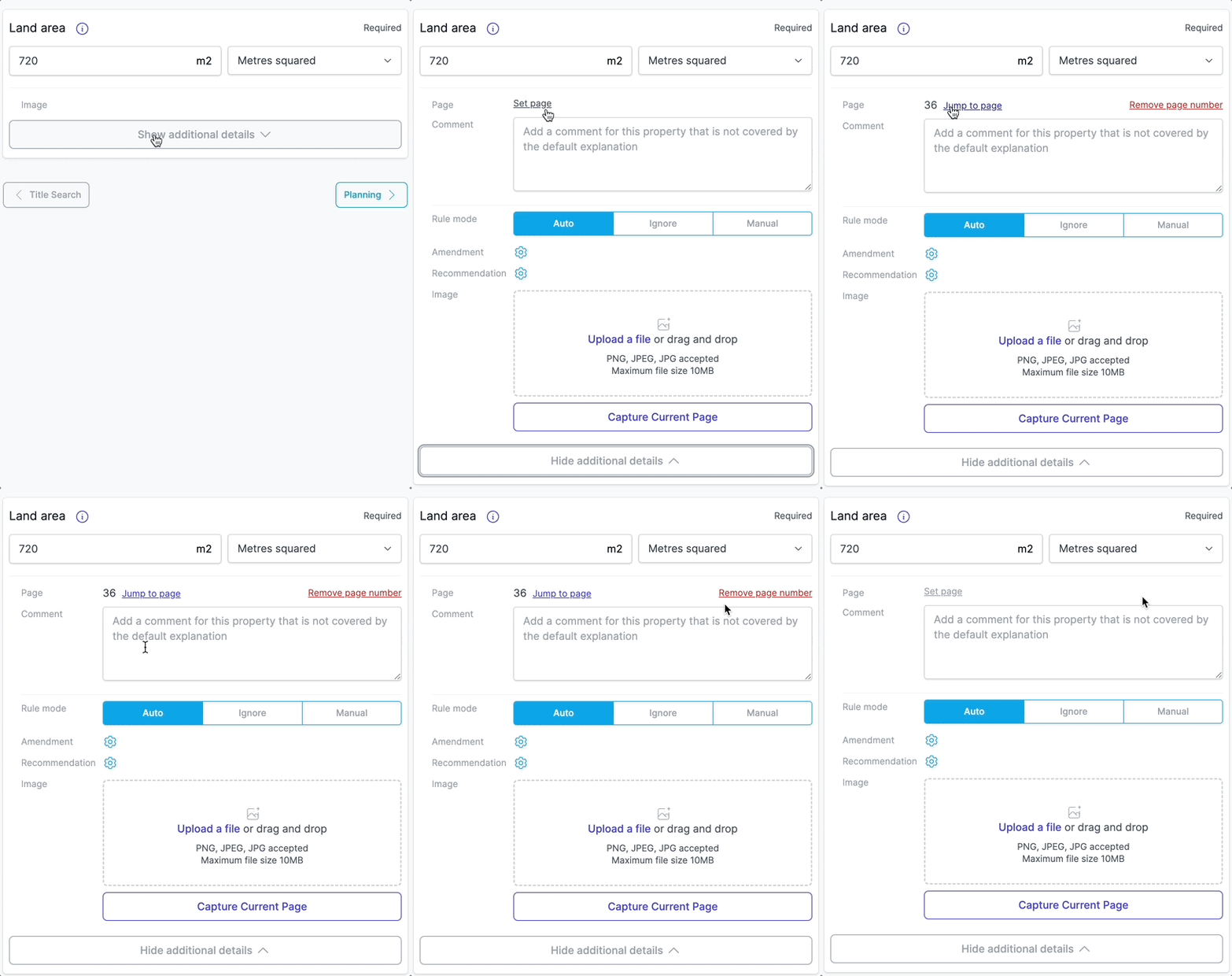
- Quick navigation: Whenever a page number is set, the "Jump to page" link appears, allowing you to navigate quickly to that exact location in the PDF.
- Manual control: While page numbers are often set automatically, you can manually add, update, or remove them as needed for accuracy.
To set a page number
- Click "Show additional details".
- Click "Set page" if no page is currently set.
- The current page number from the PDF viewer will be set.
To remove a page number
- Click "Show additional details".
- Click "Remove page number".
To jump to a page
- Click the "Jump to page" link to jump directly to that page in the PDF.
How do I use the reference functionality?
References are used to specify a clause or location reference for information in the contract.
To add a reference
- Click "Show additional details".
- Enter the reference in the "Reference" text field (Example: Special Condition clause "33").
To remove a reference
- Click "Show additional details".
- Delete the content in the Reference field.
How do I use the risk functionality?
To set a risk level
- Click "Show additional details".
- Select the appropriate risk level from the dropdown menu (High, Medium, or Normal).
To remove a risk level
- Select "Normal" from the dropdown menu.
How do I use the comment functionality?
Comments are used to add additional notes about a property that are not covered by the default explanation in your template content.
To add a comment
- Click "Show additional details".
- Enter your comment in the "Comment" text field (Example: "The easement is on the western boundary").
To remove a comment
- Click "Show additional details".
- Delete the content in the Comment field.
FAQ
What is the difference between detected and manual Fields?
Detected Fields are automatically populated by Curia using content from the document. Manual Fields require you to enter values yourself.
Can I override a detected value?
Yes, you can always edit or clear a detected value. Use the visibility toggle to show Fields that weren't detected, or hide Fields that were detected.
How do I add a comment to a Field?
Click "Show additional details" at the bottom of the Field, then enter your comment in the Comment text area.
What do the toggle status messages mean?
The toggle shows different messages: "Not detected" when the Field wasn't found in the contract, "Overridden to be shown" when you manually enabled a Field that wasn't detected, and "Overridden to be hidden" when you manually disabled a Field that was detected.
How do I set a page number for a Field?
Click "Show additional details", then click "Set page". This captures the current page number from the PDF viewer. You can click "Jump to page" to navigate back to that page later.
What are the risk levels?
Risk levels are High, Medium, and Normal. You can set the risk level from the dropdown in the additional details section. Risk levels can affect how Fields are displayed in your Report.
How do I reorder images attached to a Field?
Click "Show additional details" to expand the Field, then drag images using the handle icon to reorder them.
Can I edit images after uploading?
Yes, click the "Edit" button on any image to open the image editor. You can crop, annotate, highlight, and add stickers to images.
How do I delete a Field?
For non-required Fields in Dealings and Special Conditions, click the trash icon, then click "Confirm" to delete. Required Fields cannot be deleted.