
Area converter
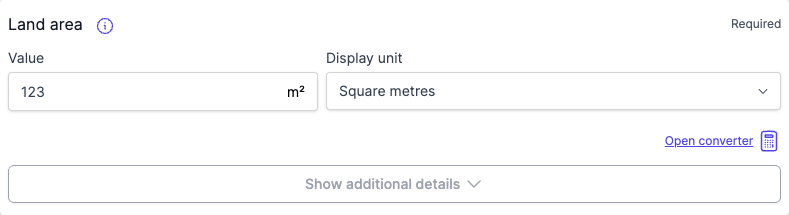
The area converter allows you to input area measurements in various units and convert them to your desired display unit. The area converter is available for area fields during document review: land area, unit area, car space, storage space, and other space.
How do I access the area converter?
- Navigate to the Area tab in your document review
- Locate an area field (land area, car space area, storage space area, or other space area)
- Click "Open converter" below the area input field
- The area converter modal will appear
Which units can I convert from?
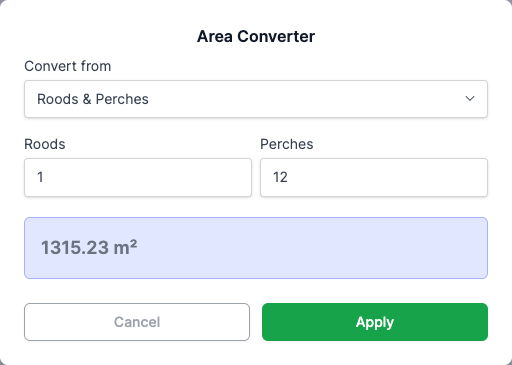
The area converter supports conversion from these input units:
- Square metres (m²)
- Square feet (ft²)
- Perches
- Roods & Perches
- Hectares
- Acres
How do I use the area converter?
- Select your input unit from the "Convert from" dropdown
- Enter the measurement value in the input field
- The converted value appears in the preview area
- Click "Apply" to update the area field with the converted value
How does the conversion preview work?
The conversion preview shows the result in your currently selected display unit and updates automatically as you type.
How do I change the display unit?
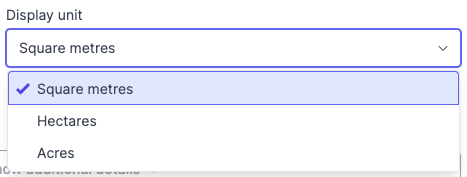
- Use the "Display unit" dropdown next to the area value field
- Select from square metres (m²), hectares (ha), or acres
- The area converter will convert to your selected display unit
- Your reports will show measurements in the selected display unit
What happens when I apply a conversion?
- The converted value replaces any existing value in the area field
- The value is stored in your selected display unit
- The area converter modal closes automatically
- The converted value appears in your document reports
FAQ
What units can the area converter handle?
The area converter supports square metres, square feet, perches, roods & perches, hectares, and acres as input units.
What display units are available?
You can display area values in square metres (m²), hectares (ha), or acres. The selected display unit appears in your reports.
Does the conversion happen automatically?
No. You must click "Open converter", enter your values, then click "Apply" to update the field with the converted value.