
Recommendations and amendments
What are recommendations?
Recommendations in Curia consist of two related parts:
- Amendment requests: Legal language that communicates a requested change to the vendor's solicitor
- Example: "Reduce the delayed settlement interest rate to 8%"
- Recommendation: Client-friendly language that explains the amendment in non-technical terms
- Example: "We recommend the vendor reduce the interest rate for any delay in settlement to a more reasonable 8% pa"
How are rule-based recommendations generated?
Curia includes automatic recommendation rules that trigger based on specific field values:
- When a field value meets certain criteria, the system automatically adds the corresponding recommendation
- These rules are built into Curia and apply consistent standards across reviews
- Rule-based recommendations are indicated by a blue cog icon next to the text
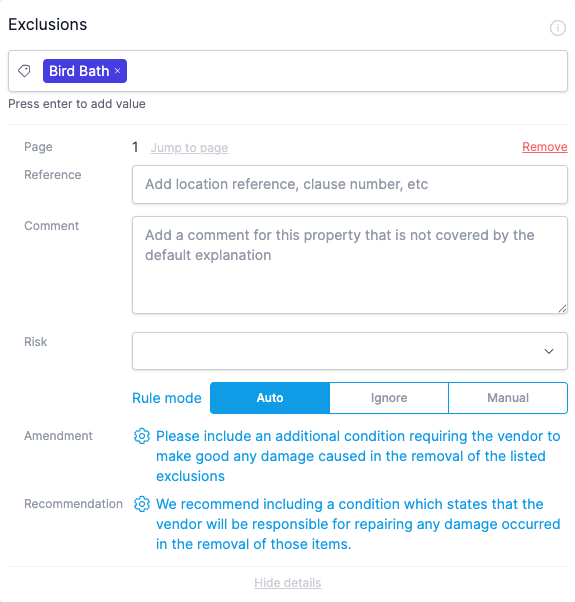
How do recommendation modes work?
Each field with recommendation capabilities offers three operating modes, controlled by a toggle:

Auto mode
- Default setting for all fields with a rule
- Applies rule-based recommendations automatically when conditions are met
- Recommendation text appears in blue and cannot be edited
- If no rule is triggered, no recommendation is added
Ignore mode
- Deactivates rule-based recommendations for the field
- Any existing recommendation will be struck through and excluded from reports
- Useful when a standard recommendation doesn't apply to your specific case
- No recommendation for the field will appear in the finalised report
Manual mode
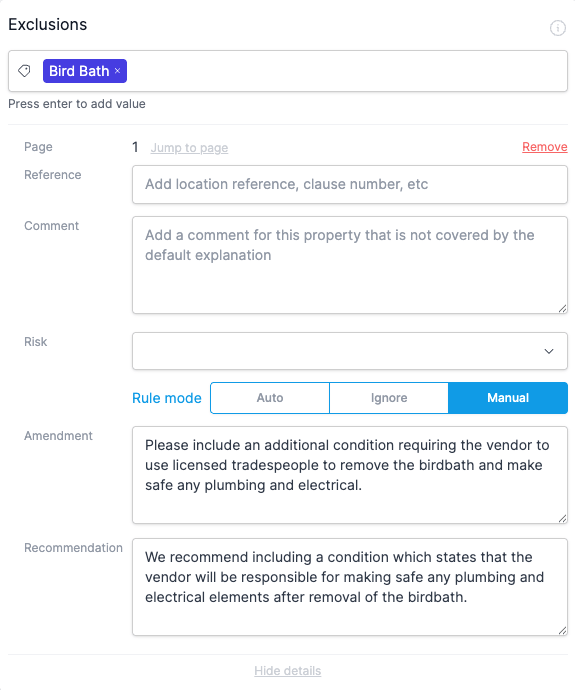
- Allows you to create or edit recommendation text for a field
- If a rule is triggered, the automatic text is provided as a starting point
- Both amendment and recommendation fields become editable
- Perfect for customising standard recommendations or creating new ones for fields that don't typically trigger rules
How do I change recommendation modes?
To switch between recommendation modes:
- Click "Show details" on any field to expand its options
- Locate the "Rule mode" toggle in the expanded view
- Select your preferred mode: Auto, Ignore, or Manual

When switching from Manual mode with custom text, a confirmation dialog will appear to prevent accidental loss of your customisations.

How do I customise recommendations in manual mode?
When using Manual mode:
- Both Amendment and Recommendation text fields become editable
- If switching from Auto mode with active rules, the existing text is provided as a starting point
- Edit both fields to create your customised version
- The changes will persist even if you navigate away from the page or close the review
- Both fields will be included in the finalised report
How can I access all amendment requests?
The 'Finalise' tab compiles all recommendations made throughout the review:
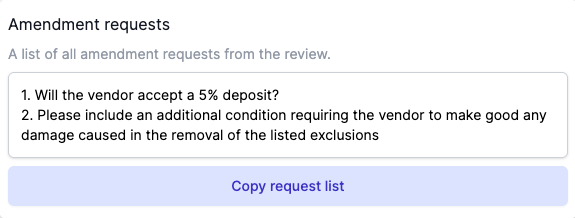
- Open the 'Finalise' tab to view a numbered list of all amendments under the 'Amendment requests' heading
- This list displays the amendment requests intended for communication to relevant parties such as the vendor's solicitor
- Any recommendations are not shown here, they are only displayed in the report.
- Use the "Copy request list" button to copy all amendment requests to your clipboard
- All amendments, whether automatic or manual, appear in this consolidated list
Can I add recommendations to fields without a rule?
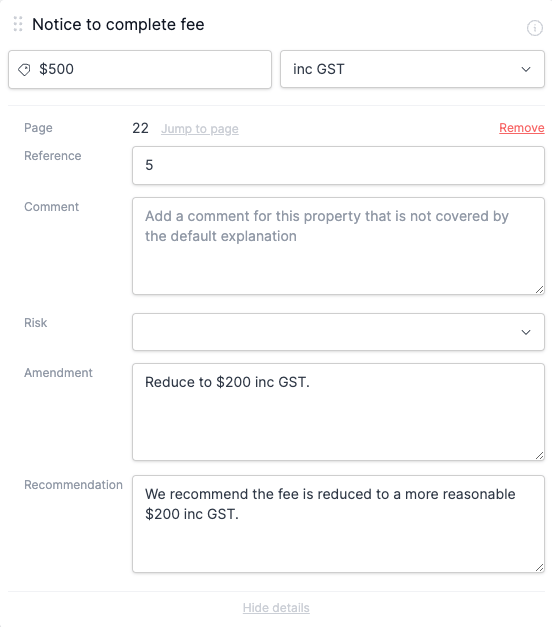
Yes, recommendations can be added to any field with recommendation functionality enabled:
- Use the 'Show details' option to expand field details
- Enter your amendment and recommendation text
- The recommendation will be added to the report and Amendment Requests list
FAQ
What is the difference between a recommendation and an amendment?
A recommendation is plain-language advice for your client. An amendment is the formal legal wording for communication with the vendor's solicitor.
Can I create custom recommendations?
Yes, you can create custom recommendations and save them to your Library for consistent reuse across reviews.
How do I remove a recommendation from a report?
Click "Show additional details" on the Field, then use the Rule mode toggle to select "Ignore". The recommendation will be struck through and excluded from the Report. Alternatively, switch to "Manual" mode to edit or clear the recommendation text.
Are recommendations automatically added?
Some recommendations are added automatically based on detected issues. You can also add recommendations manually.