
Managing multiple titles
What are multiple titles in contracts?
Multiple Titles occur when a single contract involves more than one property Title, such as a unit and car space, or multiple lots in a subdivision. Each Title can have different plan types and associated searches.
Registered vs Unregistered contracts
The Title registration setting is a contract-level classification that determines how titles are displayed and managed throughout the review. This setting is automatically determined based on the contract particulars but can be manually changed if needed.
- Registered: Standard property purchases where titles are already registered with NSW Land Registry Services. Titles appear in a single unified list.
- Unregistered (Off the plan): Purchases where the lots are not yet registered. Titles are split into Proposed Titles and Parent Titles (see Unregistered contracts below).
What title structures does Curia support?
Curia supports virtually all NSW Title structures depending on the property type and configuration:
Single Deposited Plan Title

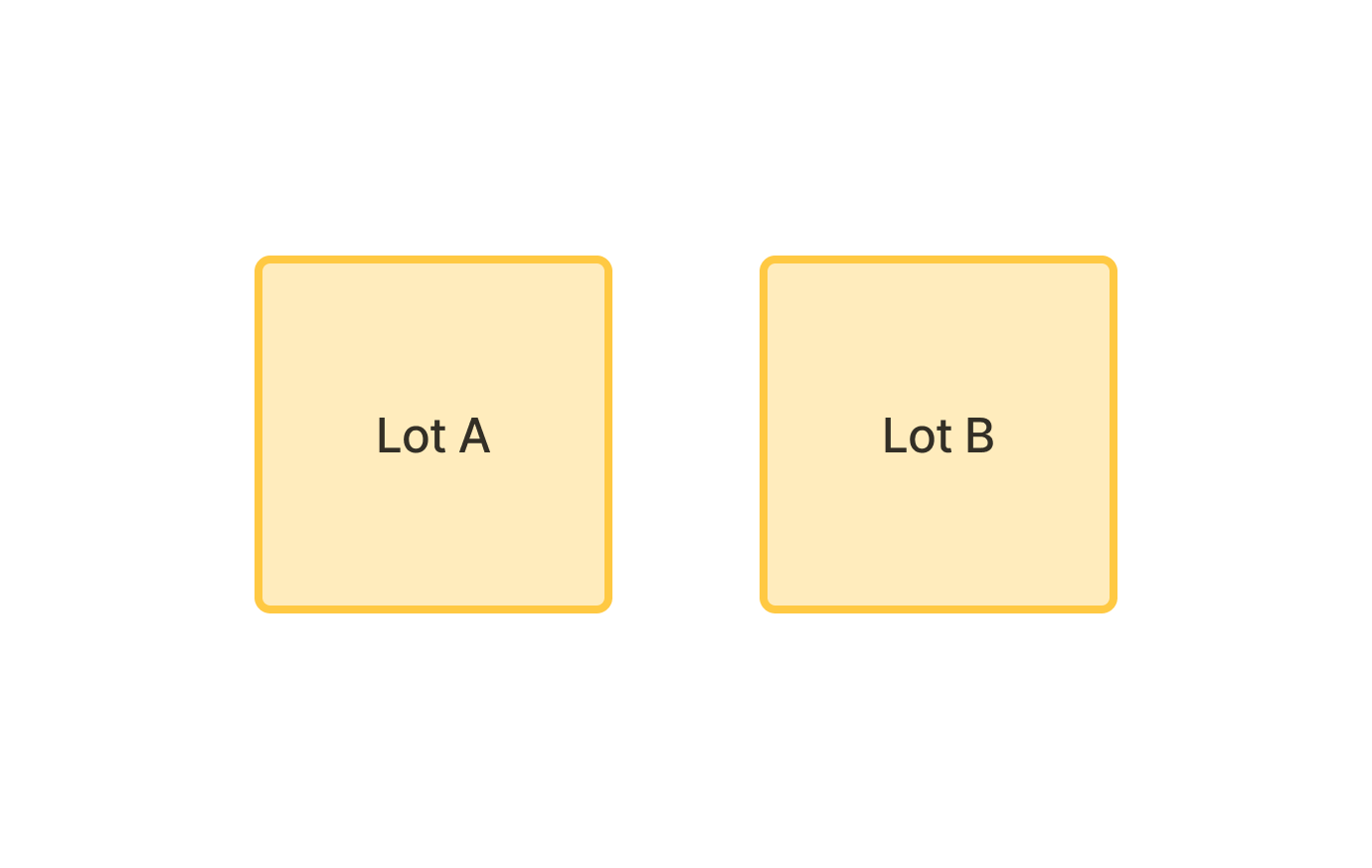
Multiple Deposited Plan Titles
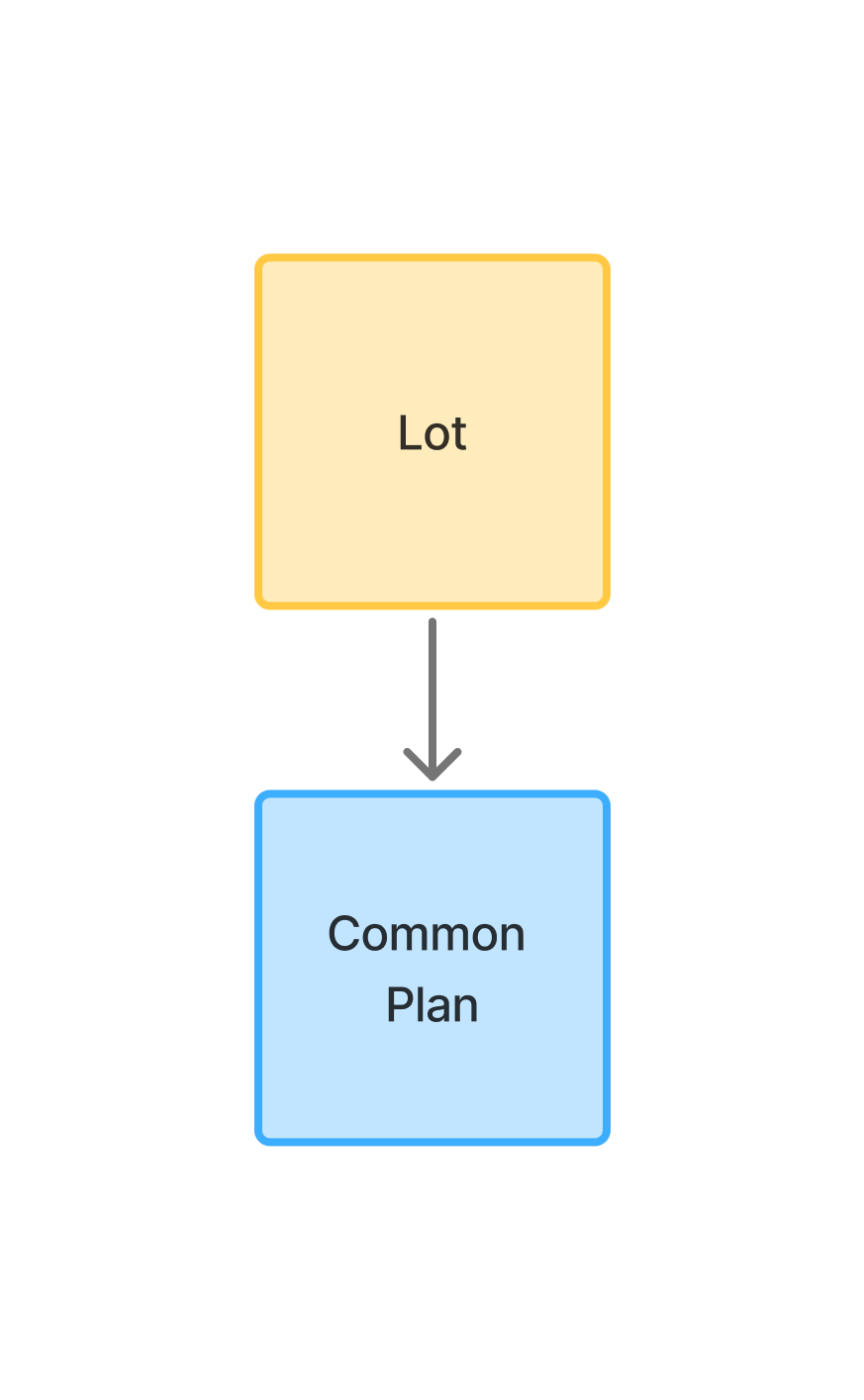
Single Strata Plan Title
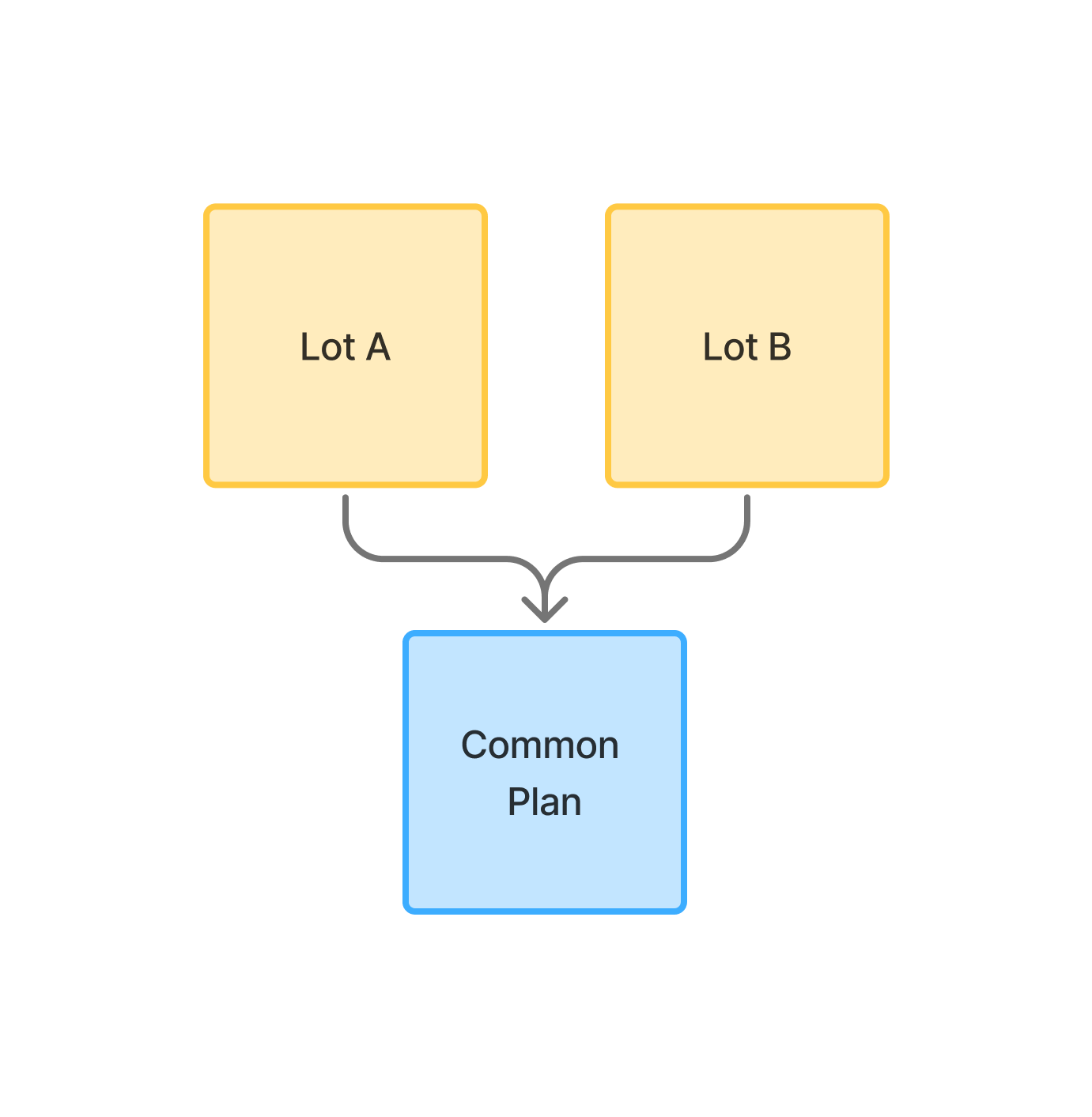
Multiple Strata Plan Titles with shared Common Property
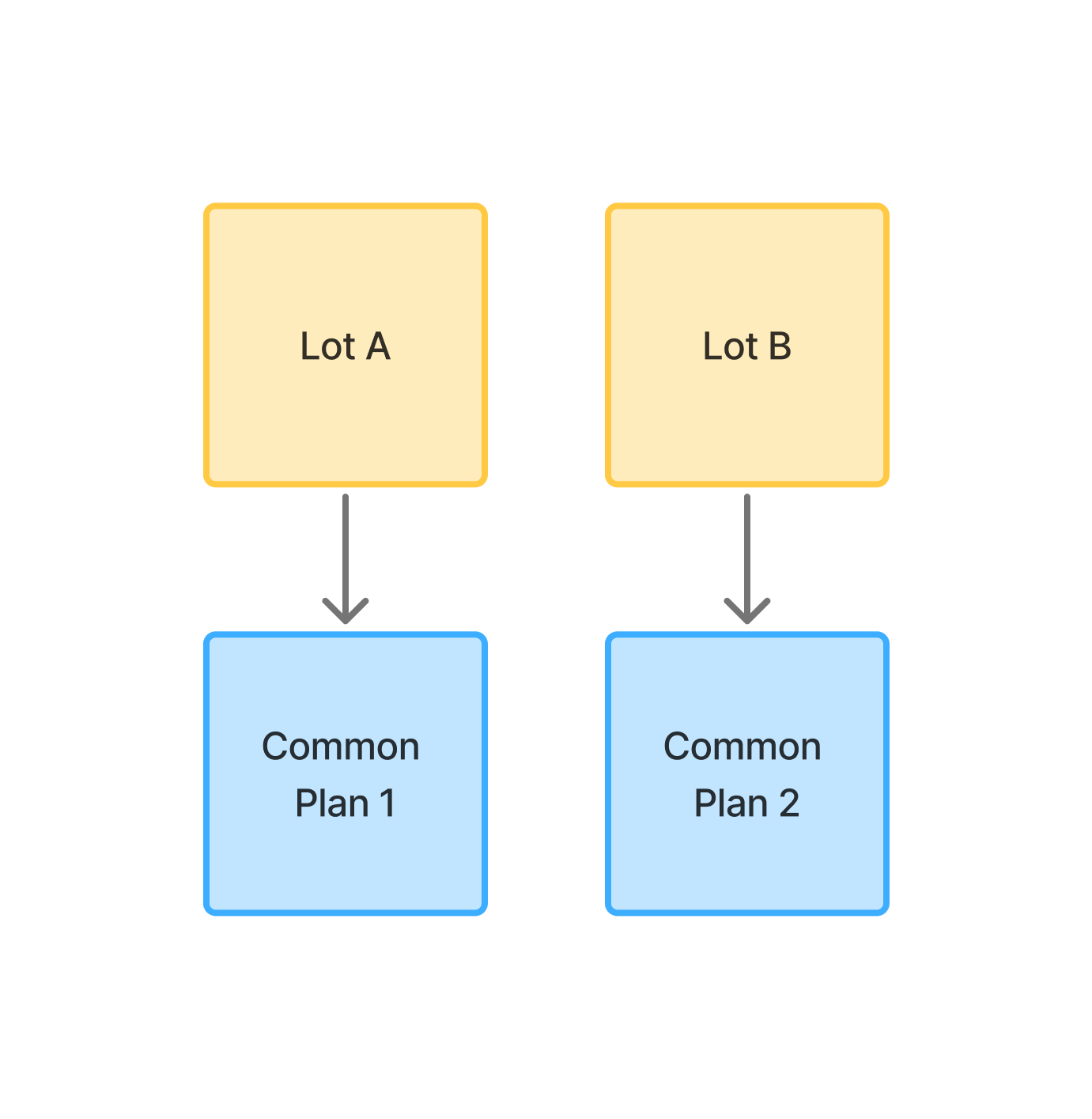
Multiple Strata Plan Titles with separate Common Property
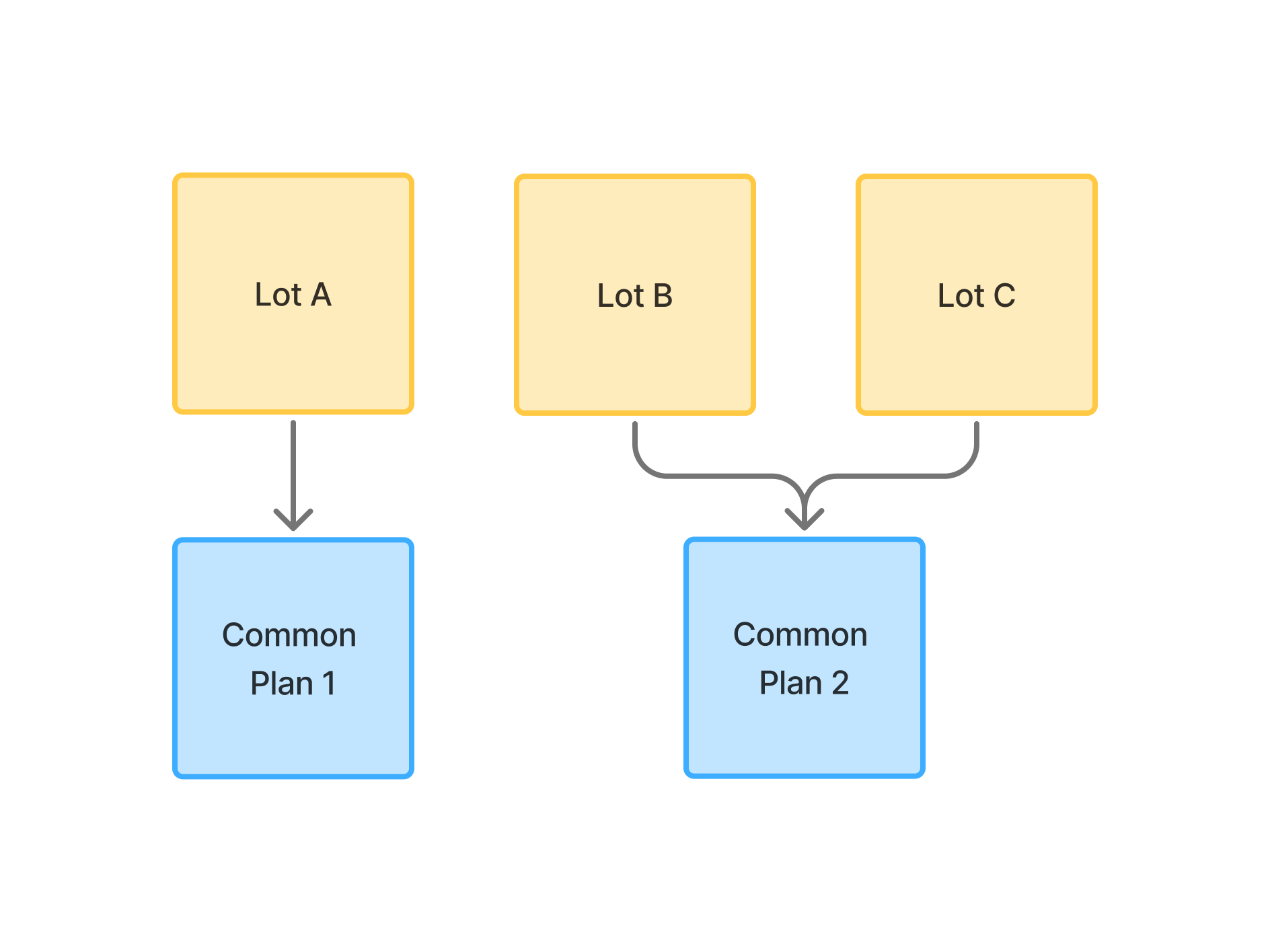
Parent Plans with any structure
Any of the above structures can include one or more parent plans:
- Neighbourhood Plan: Shared across all Titles in the contract.
- Precinct Plan: Shared across all Titles in the contract.
- Community Plan: Shared across all Titles in the contract.
- Only one of each parent plan type can exist per contract.
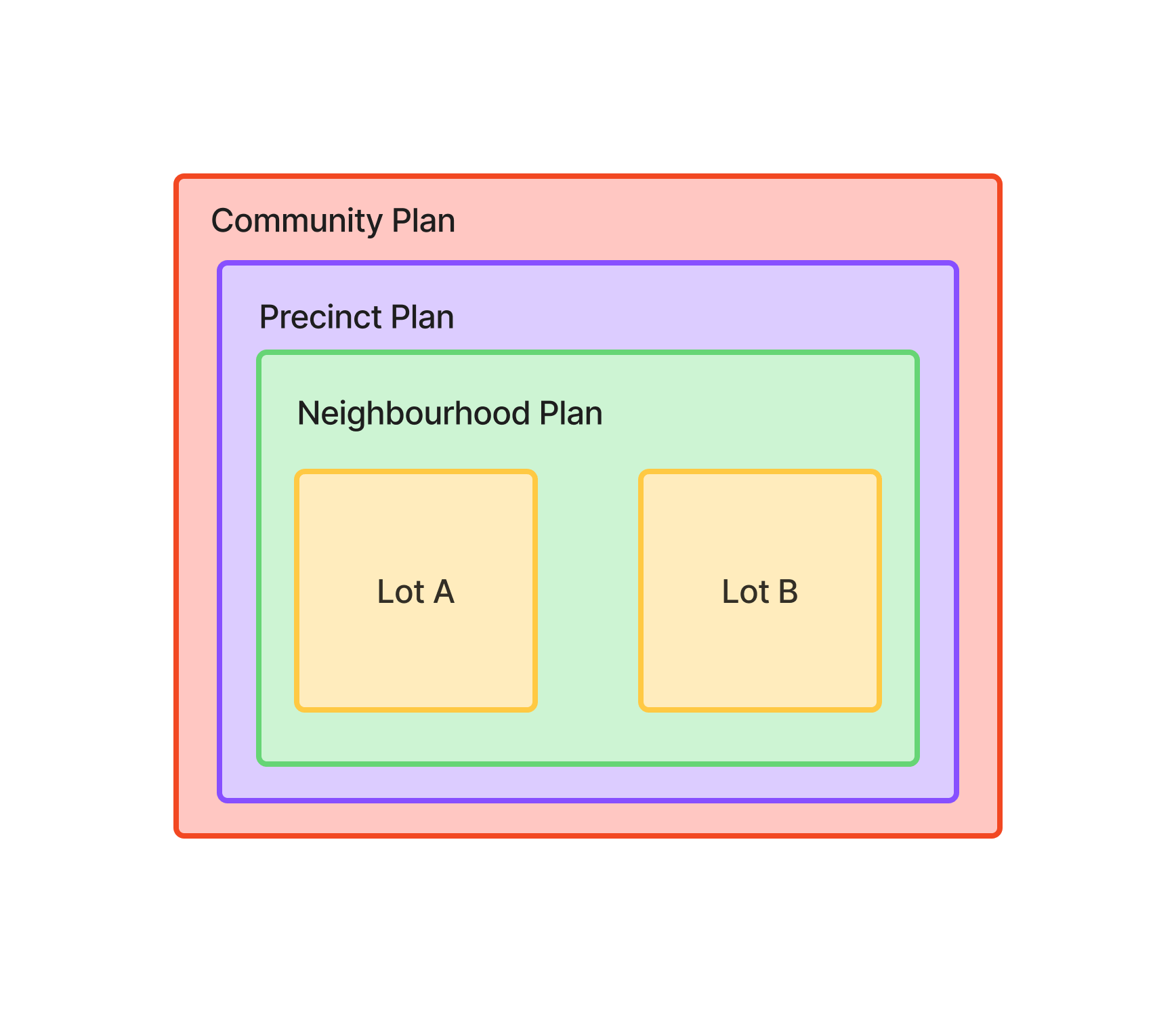
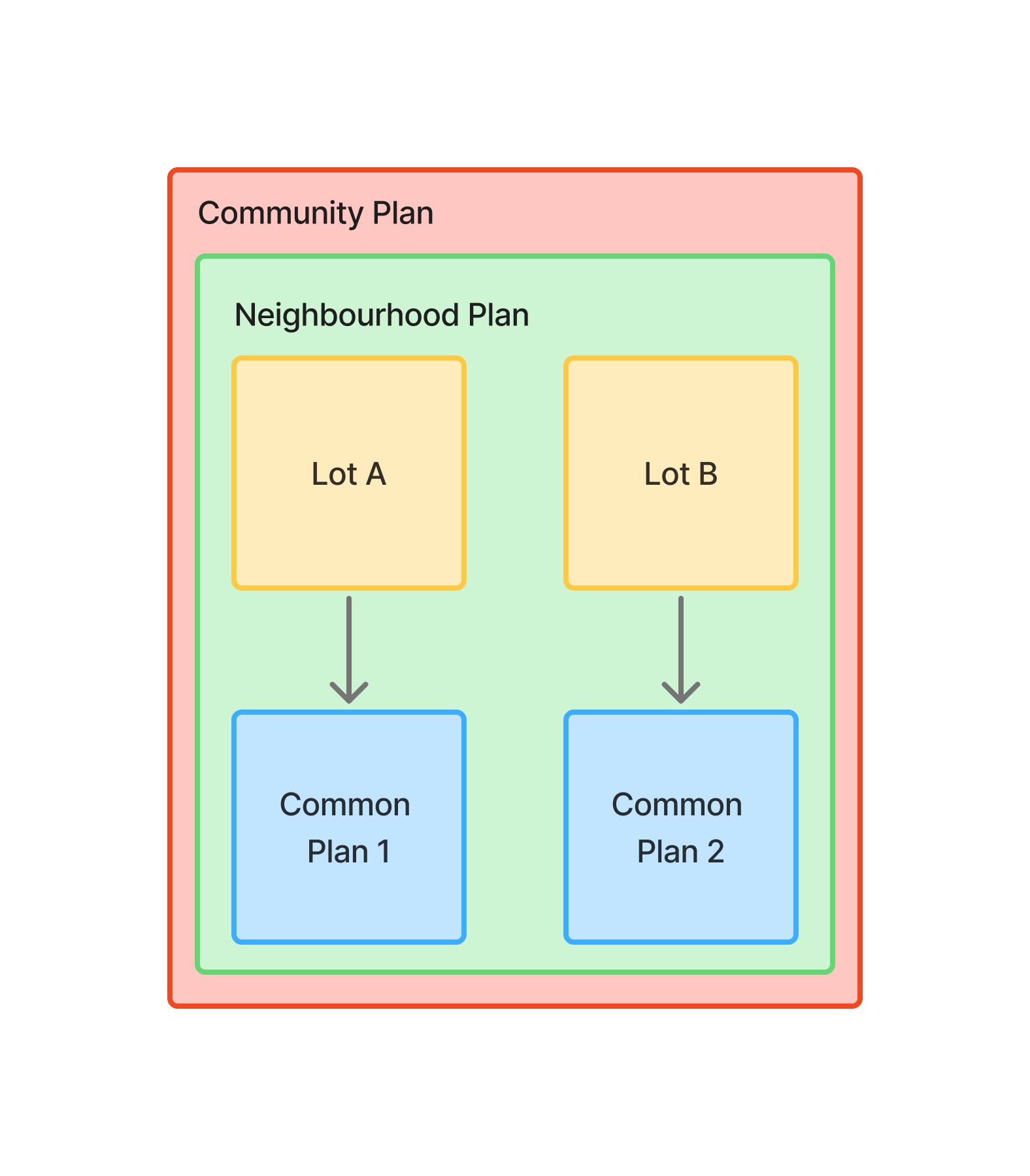
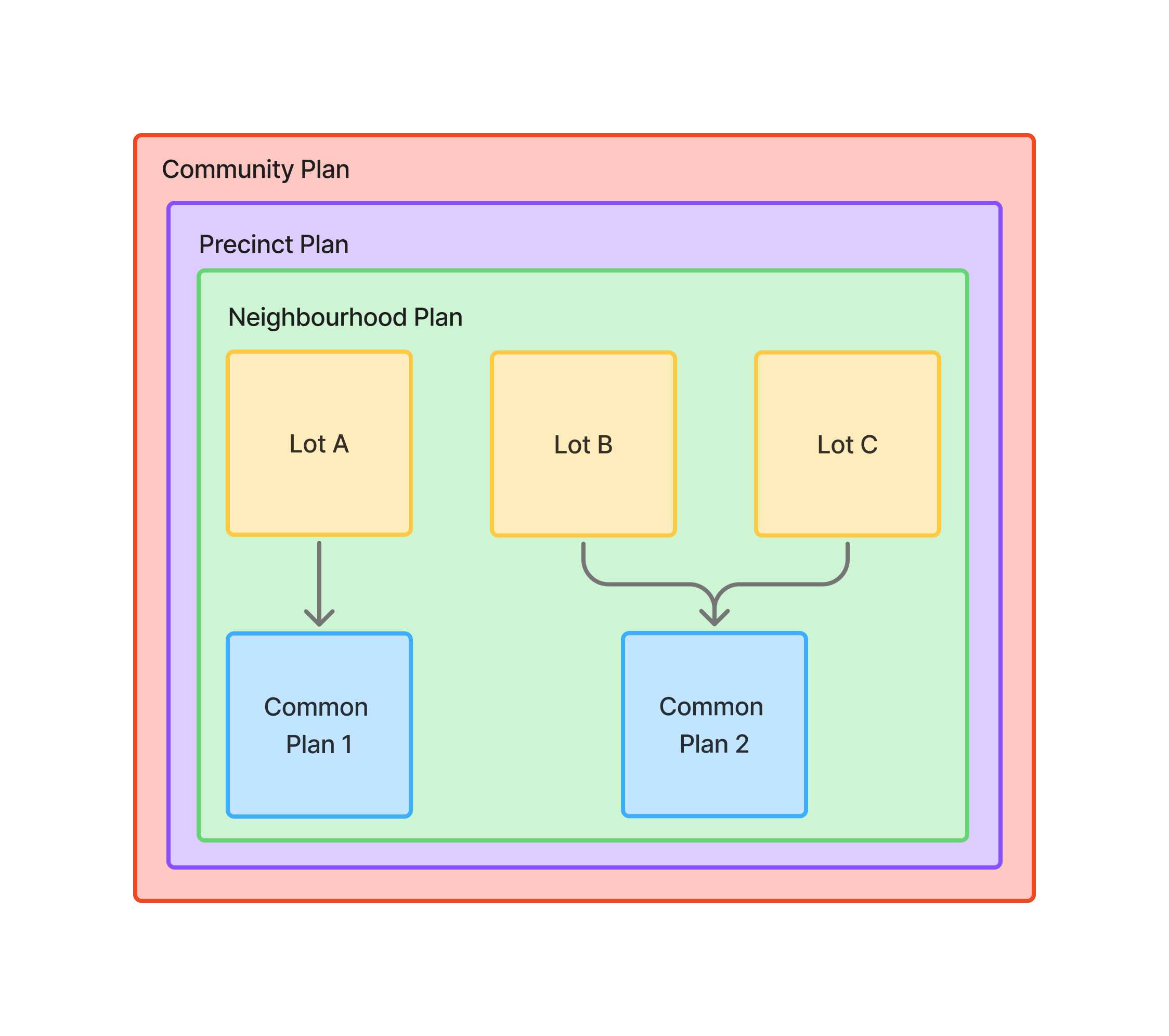
How do I manage Title entries?
How are Titles automatically detected?
- Curia scans the contract front page for Title References.
- One Title entry is created for each Title Reference found.
- Each Title receives a dedicated section with Title Reference, Plan Type, and Lot/Section/Plan fields.
- Users can add an optional Nickname for easy identification.
How do I add Title entries manually?
To create additional Title entries:
- Navigate to the Title tab.
- Click "Add new title" to create an additional Title entry.
- Enter the Title Reference and other required details.
- Set an appropriate nickname for identification.
How do I edit Title details?
Each Title entry includes:
- Title Reference: The legal Title identifier.
- Nickname: Optional friendly name (e.g., "Unit", "Car space") used throughout reports and navigation.
- Plan Type: Select from Deposited, Strata, or Auto Consol.
- Lot/Section/Plan: Lot, section, and plan numbers.
How do I remove Title entries?
To remove a Title entry:
- Click the Trash icon in the right sidebar next to the Title.
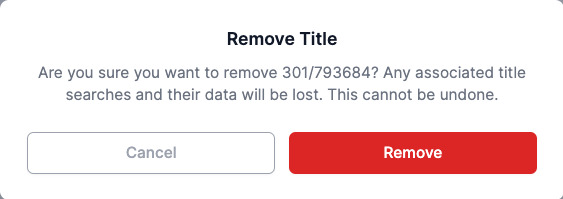
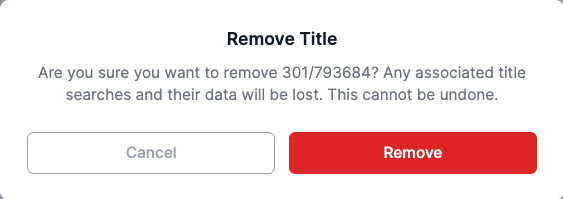
- Confirm the deletion in the confirmation dialog.
- All associated Title Searches and data will be permanently removed.
Unregistered (Off the plan) contracts
For unregistered contracts, titles are organised differently. The core operations for adding, editing, and removing titles work the same as described above, but the display and some fields differ.
Proposed Lot and Parent Titles
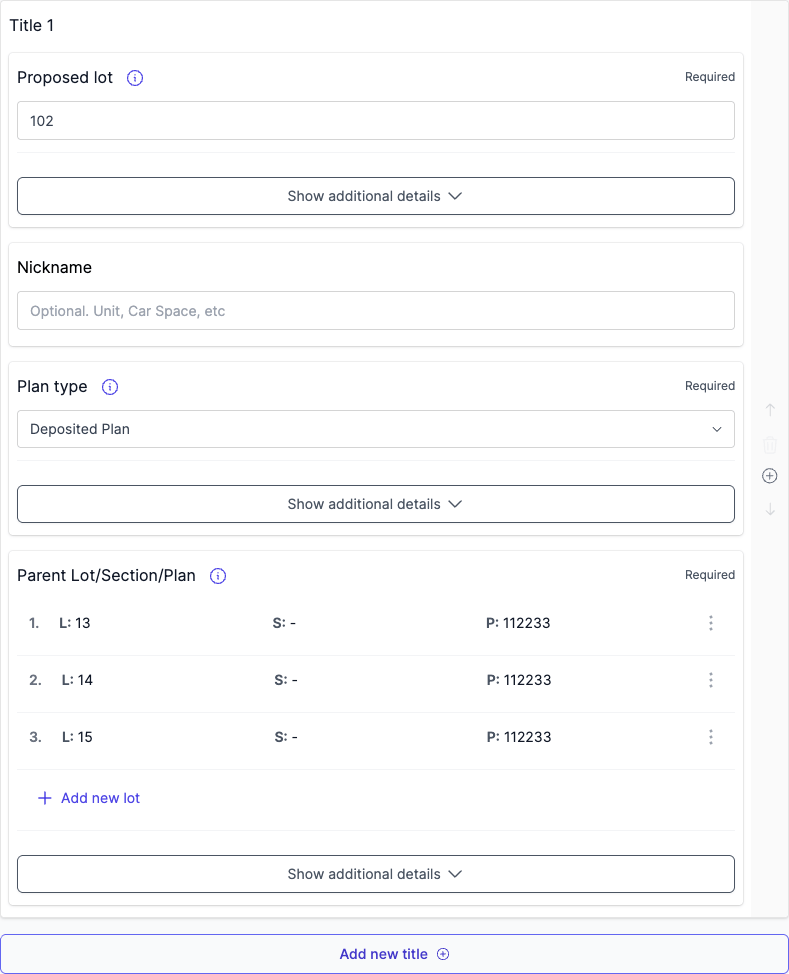
Unregistered contracts display titles in two sections:
- Proposed Lot: The lot being purchased that is not yet registered. Displayed as "Proposed Lot 1", "Proposed Lot 2", etc.
- Parent Titles: The existing registered lots from which proposed lots will be subdivided
Parent Lot Section Plan field
The Parent Lot Section Plan field identifies the parent lot from which the proposed lot will be subdivided:
- Automatically extracted from contract particulars.
- Can be manually modified if required.
- Supports multiple parent lot references per proposed title.
- Changes to this field affect the automatic generation of Parent Titles.
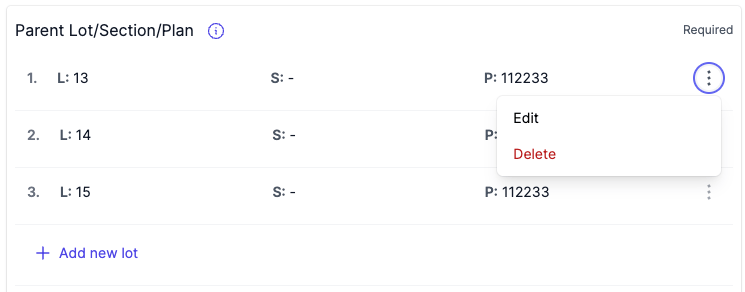
To add a parent lot reference, click the "Add new lot" button. To remove an existing reference, click the "Delete" button next to the entry.
How do I manage Title Searches?
What are individual Title Searches?
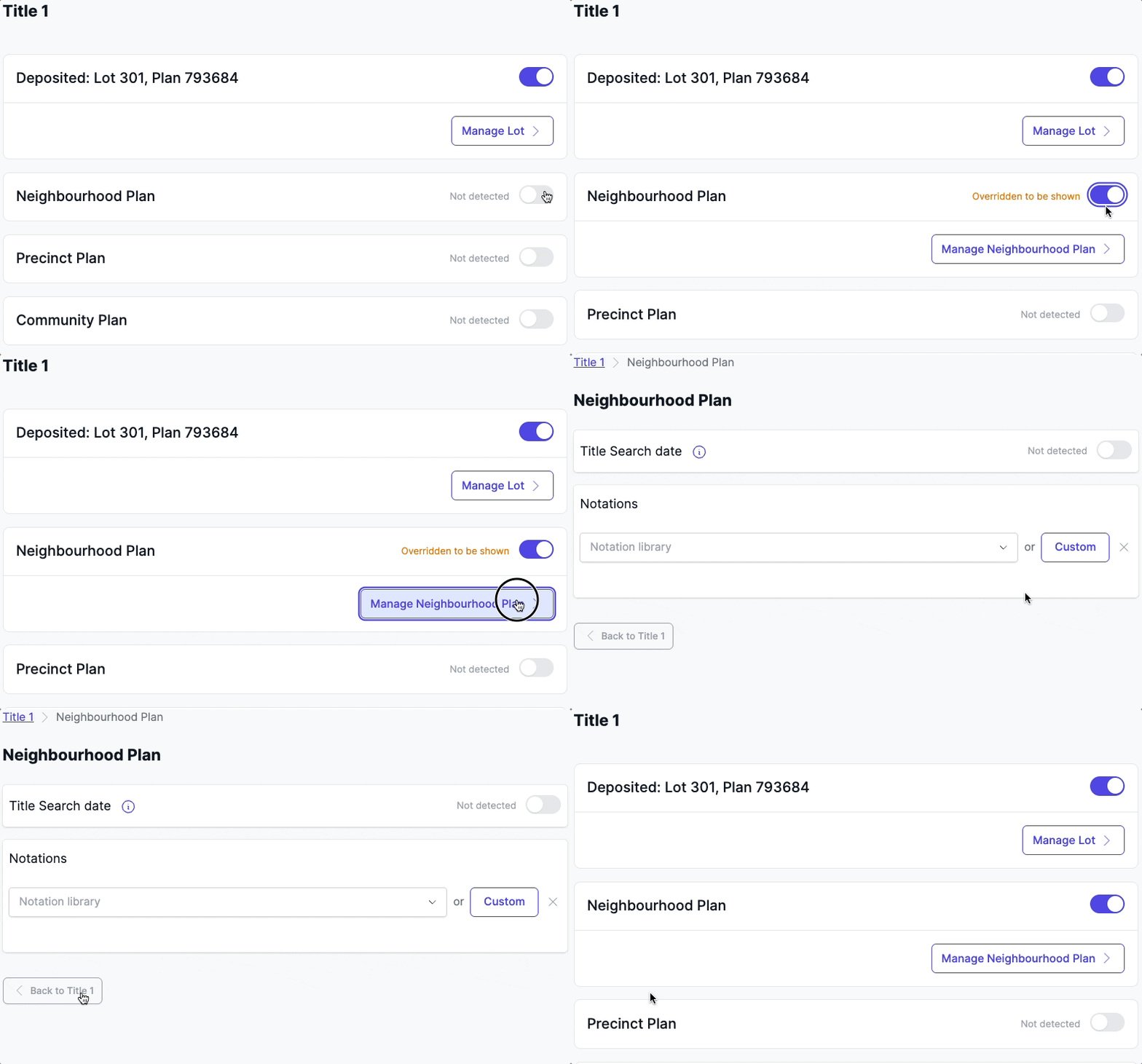
Each Title has its own dedicated Title Search section with unique Dealings and details. The available Title Searches depend on the Title's plan type:
- Deposited or Auto Consol Titles: Lot, Neighbourhood Plan, Precinct Plan, Community Plan.
- Strata Titles: Lot, Common Property, Neighbourhood Plan, Precinct Plan, Community Plan.
How does Title Search detection and toggling work?
- Title Searches are automatically enabled if detected in the contract documents.
- If not detected, available Title Searches are marked as 'not detected' and are not enabled.
- Users can manually enable any available Title Search type.
- Each enabled Title Search can include certificate dates, Dealings, and additional fields.
How do Common Property searches work?
Common Property searches are available for strata plan types and are automatically shared between Titles with matching plan numbers:
- Automatically created when detected in strata contracts.
- Shared across all Titles with the same plan number.
- Includes unit entitlement fields.
- Can be manually enabled for strata Titles if not automatically detected.
How do parent plans work?
Neighbourhood Plan, Precinct Plan, and Community Plan searches are shared across all Titles in the contract:
- Adding a parent plan to one Title automatically makes it available to all Titles.
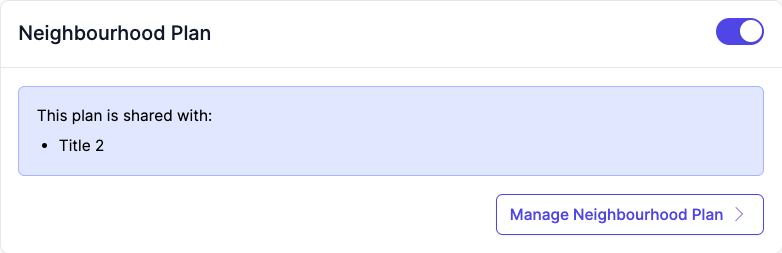
- Shared status is indicated with "This plan is shared with:" notifications.
- Only one of each parent plan type can exist per contract.
- Can be manually enabled or disabled for any Title.
What fields are available in Title Searches?
Each active Title Search may include fields such as:
- Certificate date: Date of the Title Search certificate.
- Dealings: Draggable list of detected or custom Dealings with report titles and content.
- Unit entitlement: Available for Common Property searches only.
The available fields depend on your account configuration.
How do unregistered plan Title Searches work?
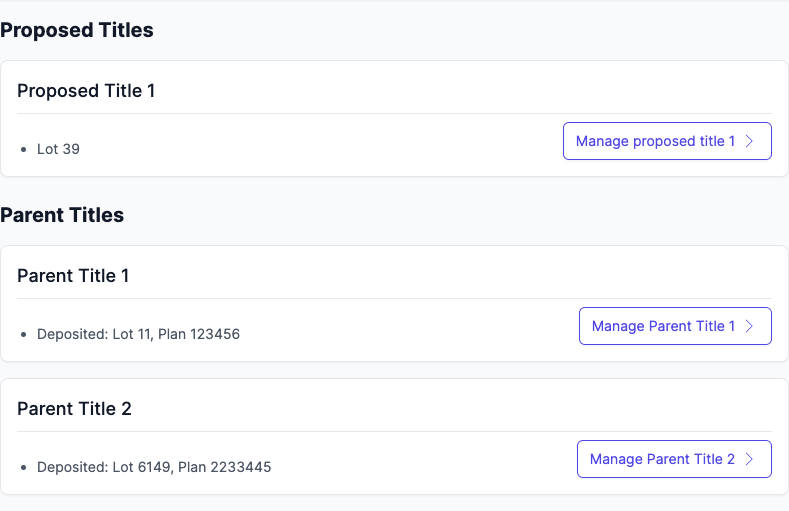
For unregistered (off the plan) contracts the Title Searches are split into two sections, Proposed Titles and Parent Titles:
- Proposed Titles: shows all proposed lots and their individual proposed title chains.
- Parent Titles: shows all existing registered lots from which the Proposed Titles will be generated and their full title chains.
- Click "Manage..." to access the Title and review details
For more information about off the plan contracts, see Using Curia for Off The Plan contracts.
How do I navigate between Titles and Title Searches?
How does navigation work for single Title contracts?
When only one Title exists:
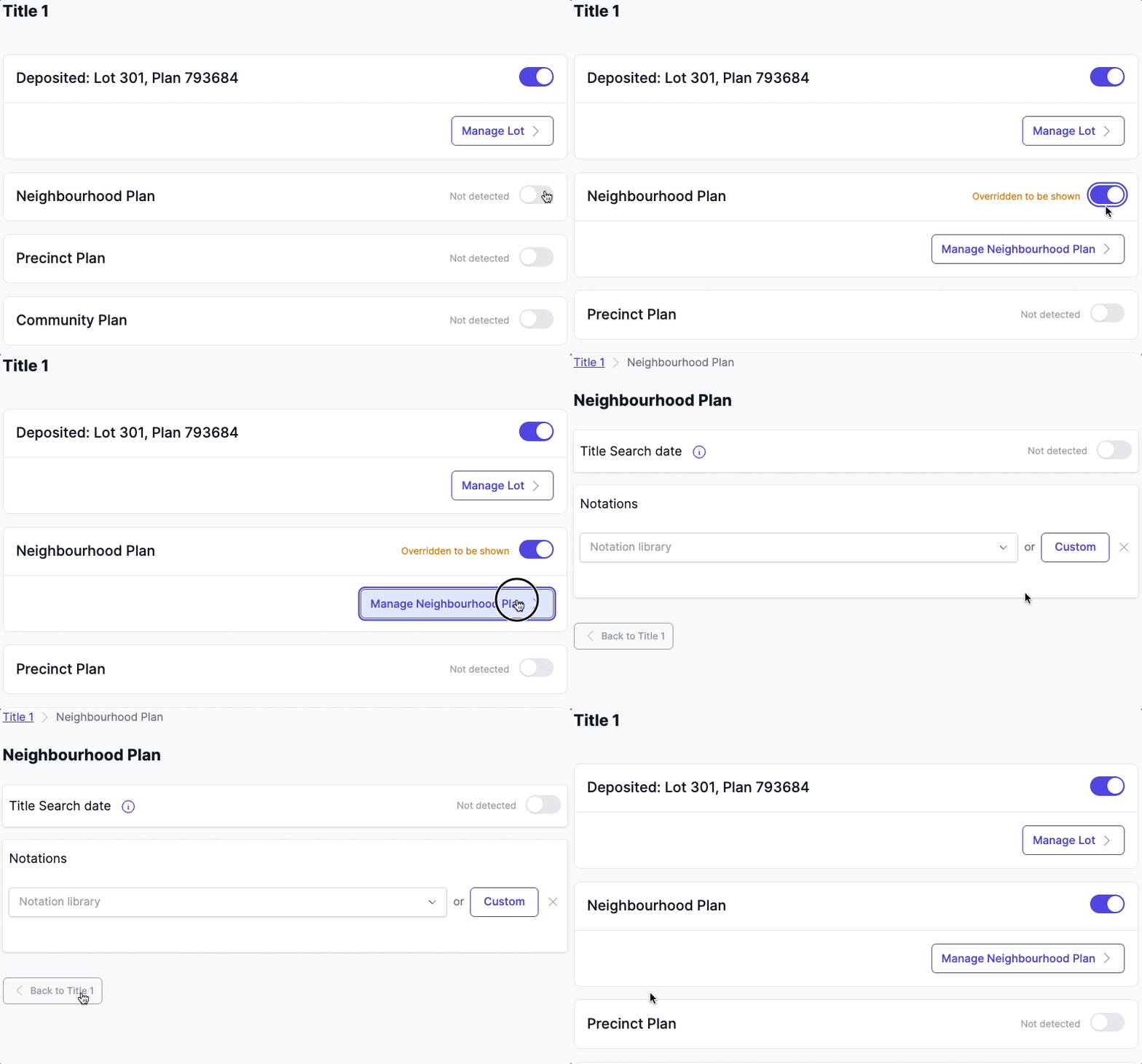
- Title Searches appear as a simple list with toggle switches.
- Click "Manage \[Search Type\]" to access detailed fields.
- Use breadcrumbs or back buttons to return to the Title Search list.
How does navigation work for multiple Title contracts?
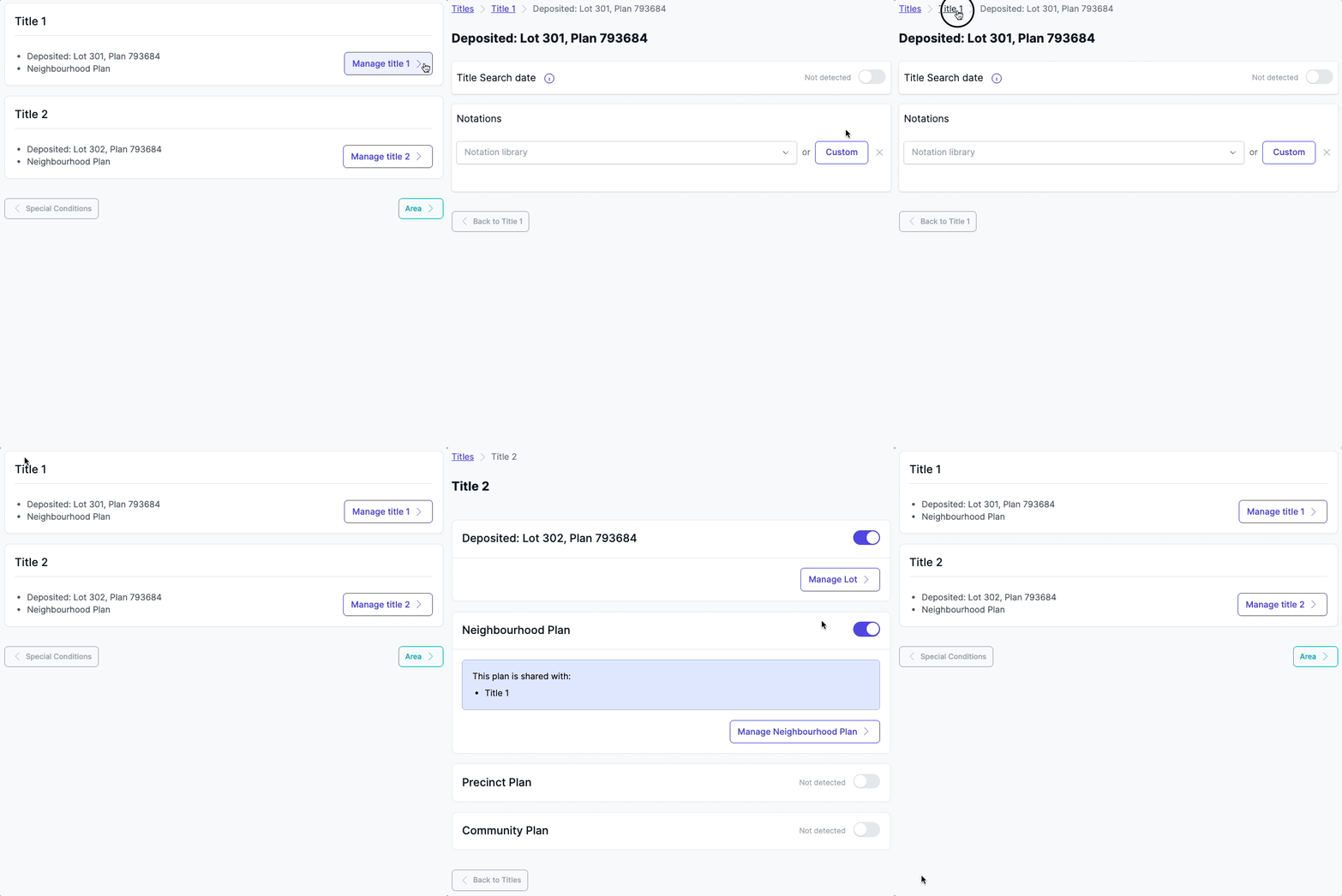
For contracts with multiple Titles:
- Navigate to "Titles" to see all Title entries.
- Click "Manage title \[number\]" to view Title Searches for that specific Title.
- Click individual Title Search "Manage" buttons to access detailed fields.
- Use breadcrumbs for quick navigation: Titles > Title N > Search Type.
What navigation controls are available?
- Bottom navigation buttons: "Back to Titles" or previous section.
- Breadcrumb navigation: Click any breadcrumb level to jump to that section.
- Shared plan indicators: Click Titles listed in shared notifications to navigate directly.
What should I know about removing Titles and changing settings?
What happens when I remove a Title?
Removing a Title entry permanently deletes:
- All associated Title Search data.
- Certificate dates and Dealings.
- Custom field entries.
- Risk assessments and recommendations.
A confirmation dialog requires acknowledgement before proceeding with deletion.
How do shared plans behave?
- Parent plans (Neighbourhood, Precinct, Community) are shared across all Titles.
- Common Property searches are shared between Titles with matching plan numbers.
- Changes to shared plans affect all associated Titles.
- Shared status is clearly indicated with informational notices.
What happens when I change plan types?
The plan type setting determines which Title Search options are available:
- Changing plan type may affect available Title Search options.
- Strata plans enable Common Property searches.
- Plan type changes from Strata to Deposited or Auto Consol will immediately remove the existing Common Title Search.
What happens when I change title registration status?
Changing the Title registration setting affects how titles are displayed across the entire contract:
- Switching from Registered to Unregistered (or vice versa) changes the title display structure.
- Warning: Data is largely lost when switching - title data, title searches, and dealings will need to be re-entered.
- A confirmation dialog warns before making this change.
FAQ
How does Curia detect multiple titles?
Curia scans the contract front page for title references and creates separate entries for each title found.
Can I add a title that wasn't detected?
Yes, click "Add new title" on the Title tab to manually create additional title entries.
What happens when I remove a title?
Removing a title permanently deletes all associated data including title searches, Dealings, and recommendations.
How do shared plans work across titles?
Parent plans (Neighbourhood, Precinct, Community) are shared across all titles in the contract. Changes to shared plans affect all associated titles.