
Using the Rescission Date field
What is the Contract Rescission Date field?
The Contract Rescission Date field:
- Automatically detects rescission dates from contract special conditions.
- Supports time periods after exchange and specific fixed dates.
- Allows vendor extension periods for both time periods and fixed rescission dates.
- Generates client-friendly descriptions of rescission timing.
- Supports combinations of multiple conditions with "earliest date" or "latest date" rules.
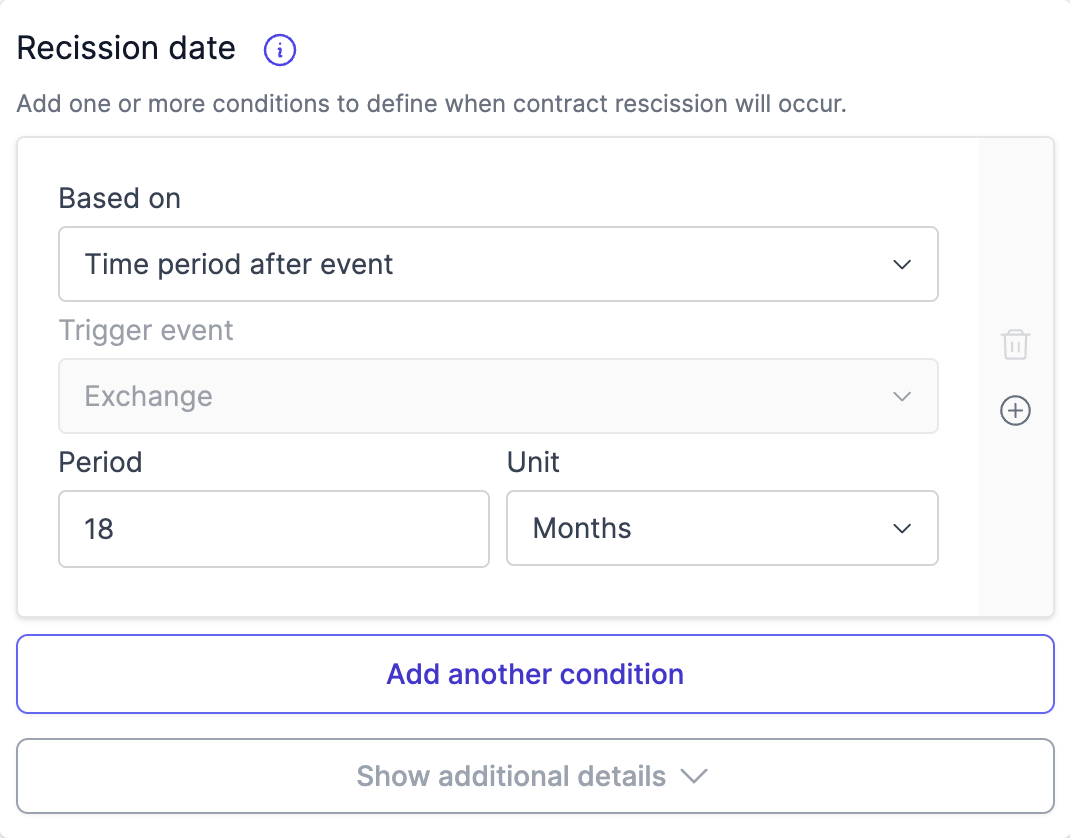
How does automatic detection work?
When rescission conditions are detected in the contract special conditions:
- The field automatically populates with the detected rescission date.
- The field expands to show the configured conditions.
- You can modify or add additional conditions as needed.
When no rescission conditions are detected:
- The field remains collapsed.
- You can manually add rescission conditions if required.

How do I add a single rescission condition?
To add a single rescission date condition:
- Navigate to the Contract Rescission Date field on the Exchange tab.
- Under "Based on", select one of the following options:
- Time period after event: Define a period after exchange of contracts.
- Specific date: Set a fixed calendar date for rescission.

For "Time period after event"
- The trigger event is automatically set to "Exchange/contract date".
- Enter the number in the "Period" field.
- Select the unit (Days, Weeks, or Months) from the dropdown.
- Optionally add an extension period that allows the vendor to extend the rescission date.
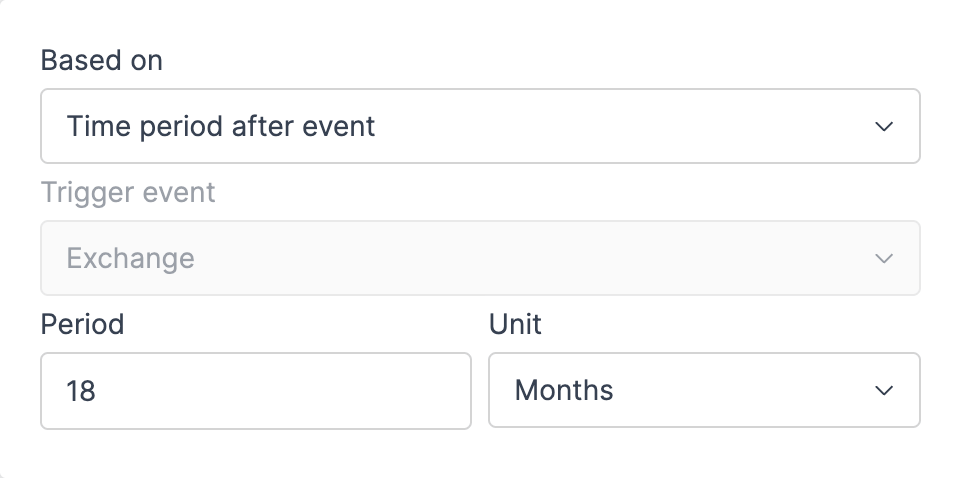
For "Specific date"
- Select or enter the calendar date when rescission becomes available.
- Optionally add an extension period that allows the vendor to extend the rescission date.
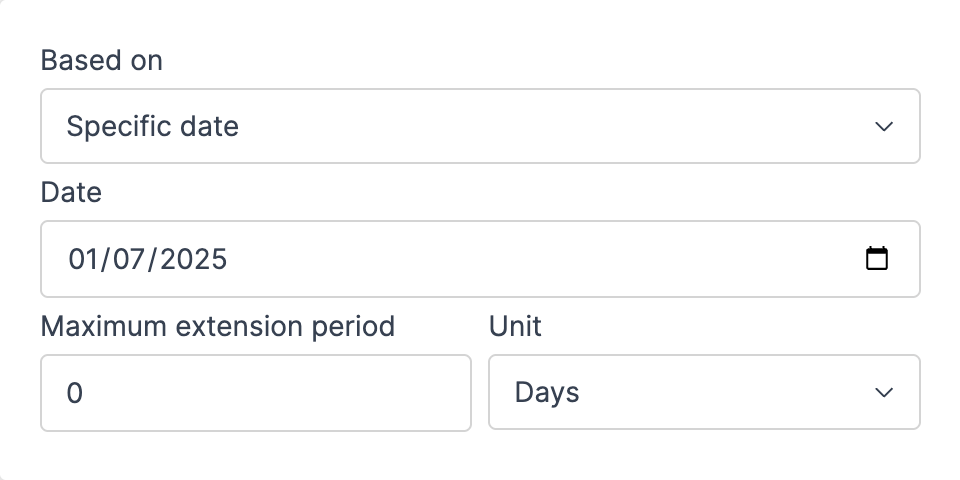
How do I add extension periods?
Extension periods allow vendors to extend rescission dates for both time periods and fixed dates:
- When configuring any rescission condition, click "Show additional details" to reveal extension options.
- Enter the extension period value and select the unit (Days, Weeks, or Months).
- Curia will calculate and display the maximum extended rescission date.
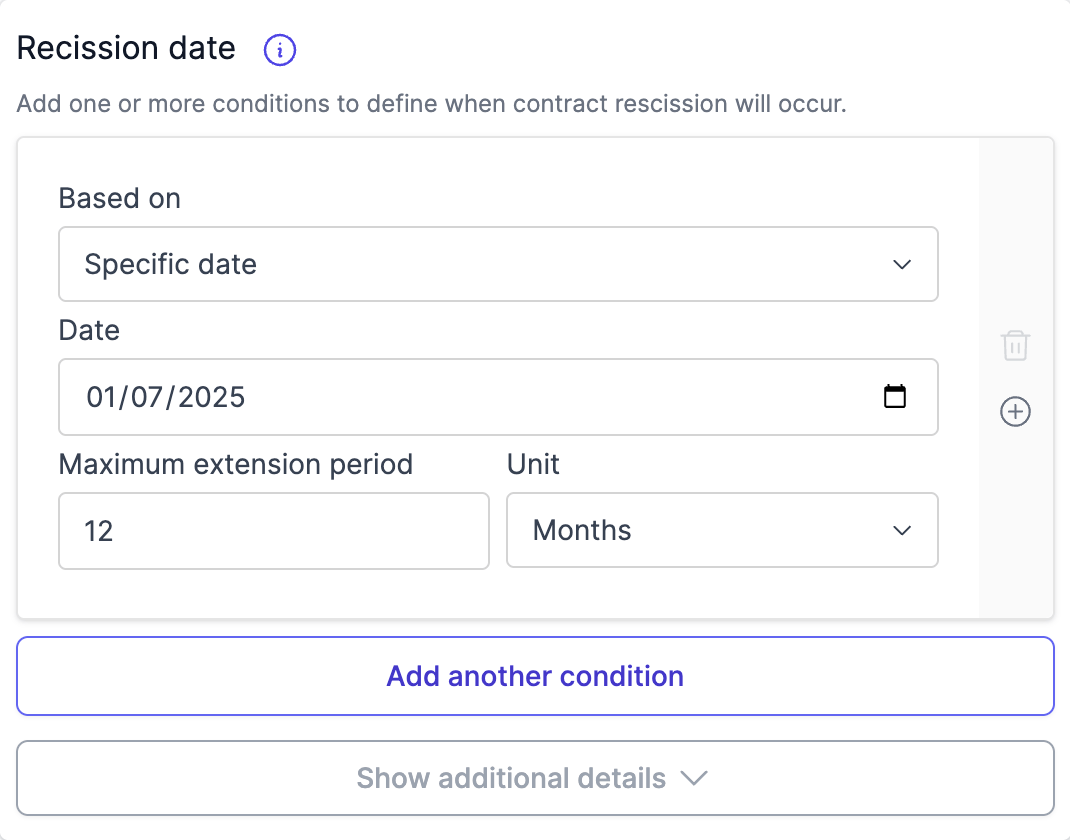
How do I add multiple rescission conditions?
To add multiple conditions:
- Complete the steps for adding your first condition.
- Click the "Add another condition" button.
- Configure the additional condition as needed.
- Continue adding conditions as required.
- When you have multiple conditions, the "Multiple conditions timing" section appears.
- Select either:
- Latest date among conditions: Rescission becomes available on the latest of all dates (equivalent to "later of").
- Earliest date among conditions: Rescission becomes available on the earliest of all dates (equivalent to "earlier of").
How do I remove rescission conditions?
- Click the delete (bin) icon on the right side of the condition box.
- If only one condition remains, the delete icon will not be available as at least one condition is required.
How do I know what the final rescission description will look like?
Curia automatically generates a client-friendly description based on your inputs. Dates will be calculated if the contract has been exchanged. This appears in the final report with formats like:
- Single fixed date: "If not already completed the contract can be rescinded by either party from 12 December 2025."
- Single offset: "If not already completed the contract can be rescinded by either party from 548 days after exchange of contracts."
- Single offset with known exchange date: "If not already completed the contract can be rescinded by either party from 548 days after exchange of contracts, being 16 July 2025."
- Multiple conditions with extensions.
Examples
Fixed rescission date
- Select "Specific date" under "Based on".
- Enter "12 December 2025" as the rescission date.
The report will display:
If not already completed the contract can be rescinded by either party from 12 December 2025.Time period after exchange
- Select "Time period after event" under "Based on".
- Enter "548" in the Period field.
- Select "Days" as the unit.
The report will display:
If not already completed the contract can be rescinded by either party from 548 days after exchange of contracts.
With a known exchange date (15 January 2024), the report will display:
If not already completed the contract can be rescinded by either party from 548 days after exchange of contracts, being 16 July 2025.
Multiple conditions with earlier of rule
- Add first condition: Select "Specific date" and enter "12 December 2025".
- Add second condition: Select "Time period after event", enter "18" months after exchange.
- Select "Earliest date among conditions" in the "Multiple conditions timing" dropdown.
With a known exchange date (15 January 2024), the report will display:
If not already completed the contract can be rescinded by either party from the earlier of:
a) 12 December 2025.
b) 18 months after exchange of contracts, being 15 July 2025.
Fixed date with vendor extension
- Select "Specific date" under "Based on".
- Enter "12 December 2025" as the rescission date.
- Click "Show additional details".
- Enter "12" in the extension period field.
- Select "Months" as the extension unit.
The report will display:
If not already completed the contract can be rescinded by either party from 12 December 2025. The vendor can elect to extend this rescission date a maximum of 12 months to 12 December 2026.FAQ
How is the Contract Rescission Date field populated?
Curia extracts rescission date information from the Special Conditions. This extracted data is used to prepopulate the Field.
Can I override the extracted value?
Yes, you can modify the Contract Rescission Date Field as required. Change the period, enter a specific date, or add extension periods to match the contract terms.
Can I add multiple rescission date conditions?
Yes. For complex contracts such as off the plan, you can add multiple cascading rescission date entries. This allows for multiple triggers based on time periods or specific dates, with "earliest" or "latest" rules to determine which condition applies.