
Managing Dealings
What is the Dealing library?
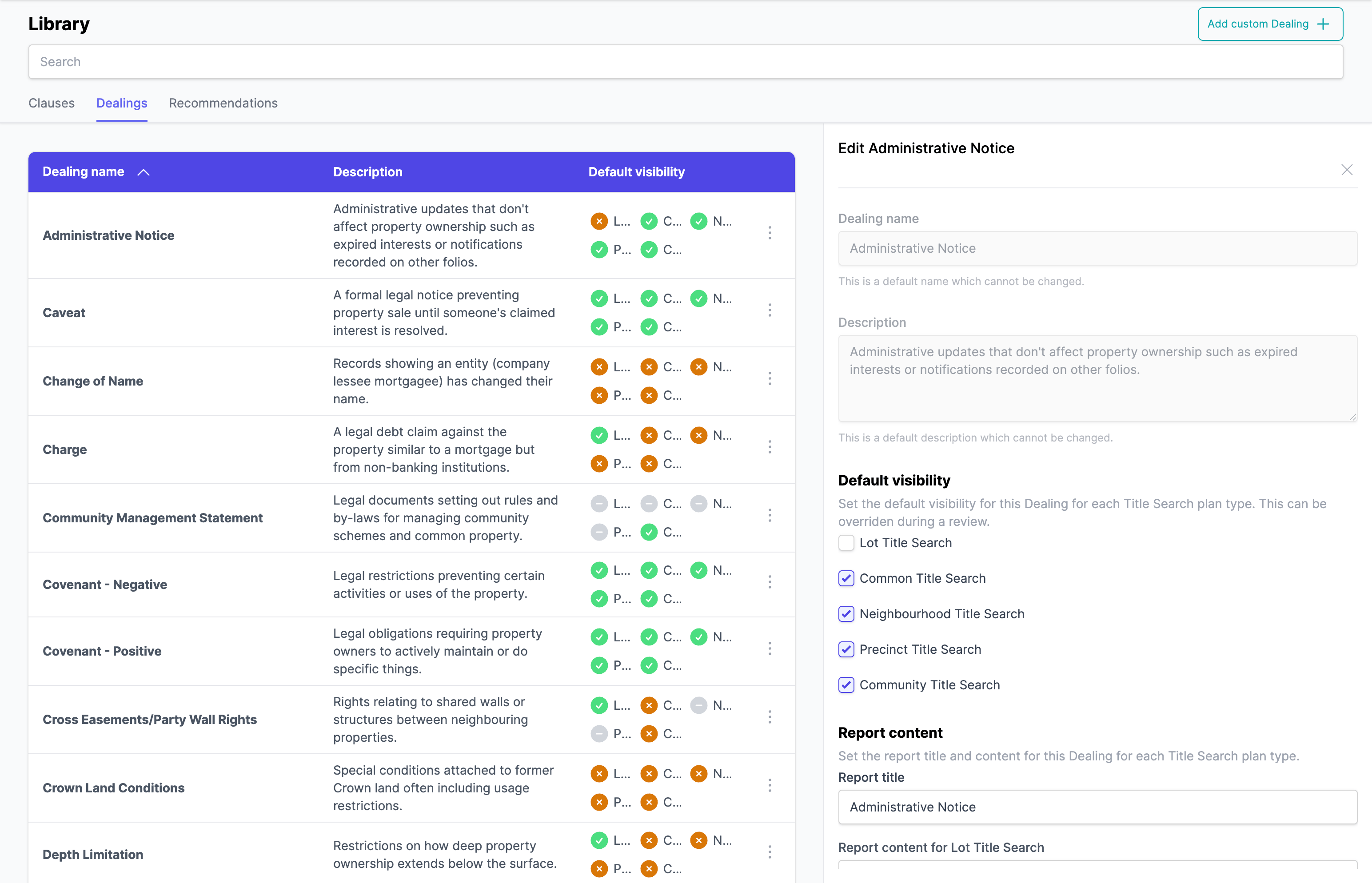
Your Dealing library contains over 40 standard Dealing categories, each with configurable settings that control how Dealings appear in contract reviews. These settings apply automatically to new reviews but can be overridden on individual reviews when needed.
How do visibility settings work?
Each Dealing category has visibility settings that determine whether it appears by default in your reviews. There are three visibility states:
- On: The Dealing will be shown by default in reviews. This is indicated by a green circle with a tick.
- Off: The Dealing will be hidden by default but can be manually shown. This is indicated by an amber circle with a cross.
- Unavailable: The Dealing type is not applicable for this property type. This is indicated by a grey circle with a dash.

Important: Visibility settings are specific to each property type. A Dealing may be visible for Common plans but hidden or disabled for other plans. For example "Strata By-Laws" are only available on Common plans.
What property types can I configure?
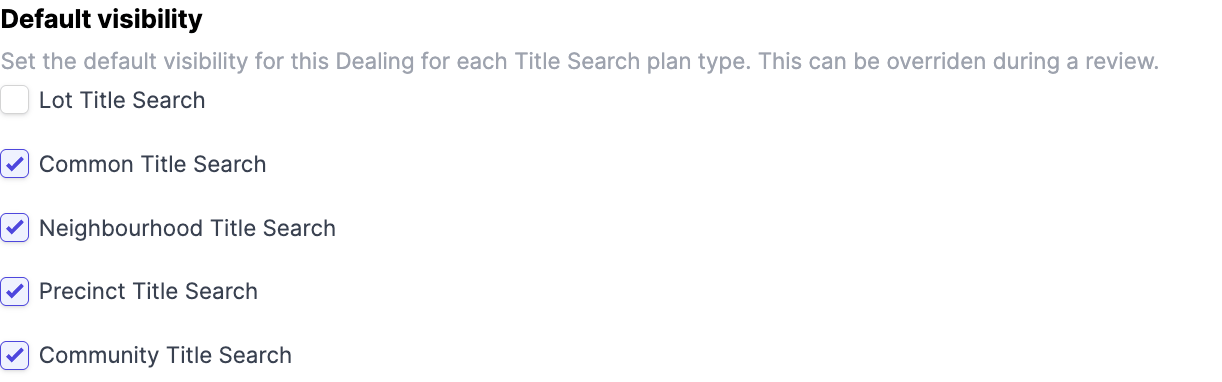
The Dealing library supports different configurations for each property type, allowing you to provide appropriate advice based on the specific context.
Available property types
- Lot
- Common Property
- Neighbourhood Property
- Precinct Property
- Community Property
Property-specific content
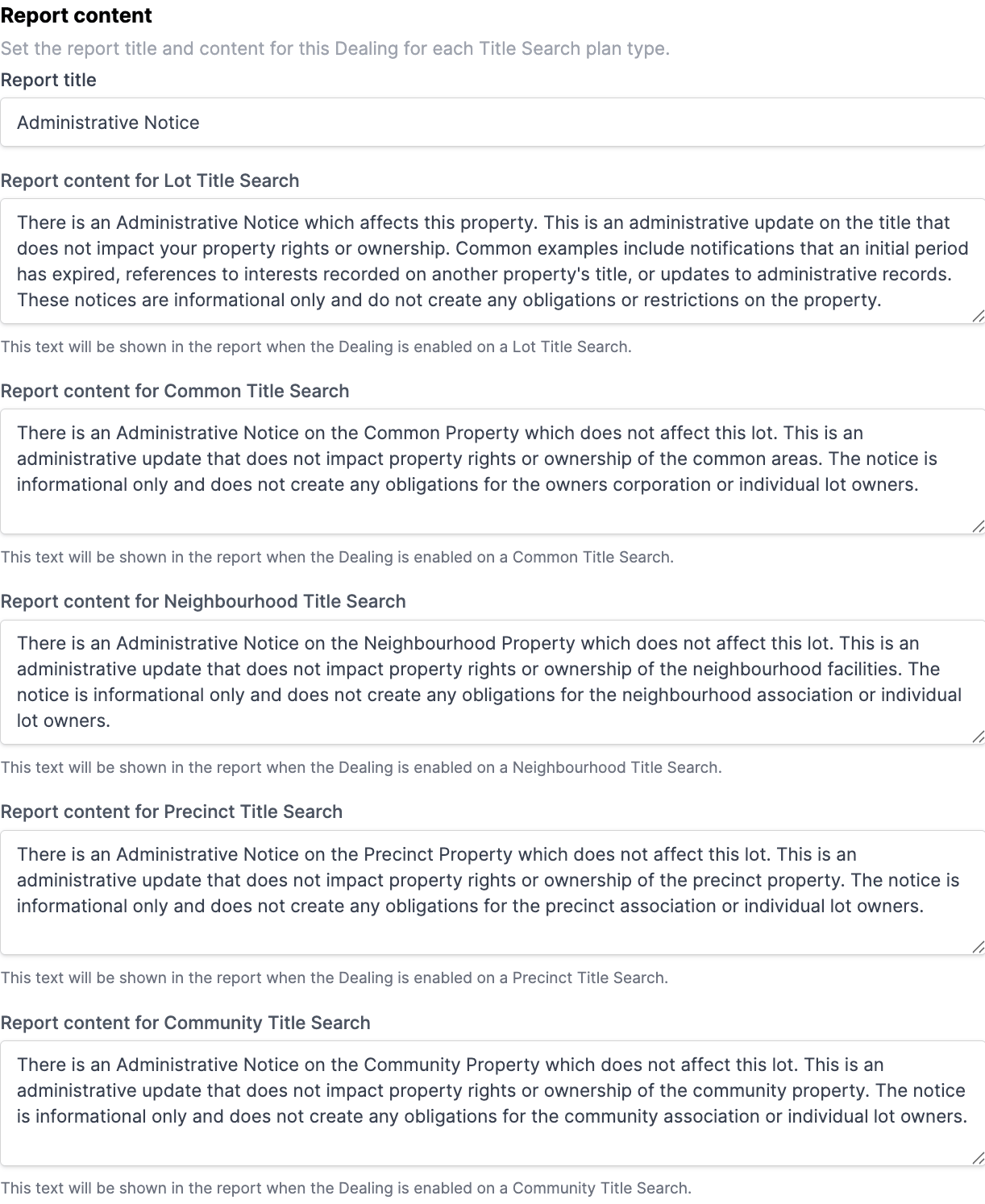
You can create different report content for each property type. For example, a caveat on a Lot might have different implications than a caveat on Common Property. The library allows you to:
- Write specific advice for each property type.
- Set different visibility defaults per property type.
How do I customise Dealing content?
Each Dealing category in your library can have customised report content that appears in your contract reviews.
Report title
The report title is the heading that appears for the Dealing in your review report. This title is the same across all property types. You can customise this to match your firm's terminology or client preferences.
Report content
The report content is the detailed description that explains the Dealing's impact on the property. This content can be different for each property type. You can:
- Use the default template content provided.
- Customise the wording to match your firm's style.
- Include specific legal references or warnings.
- Tailor content for different property types.
How do I manage custom Dealings?
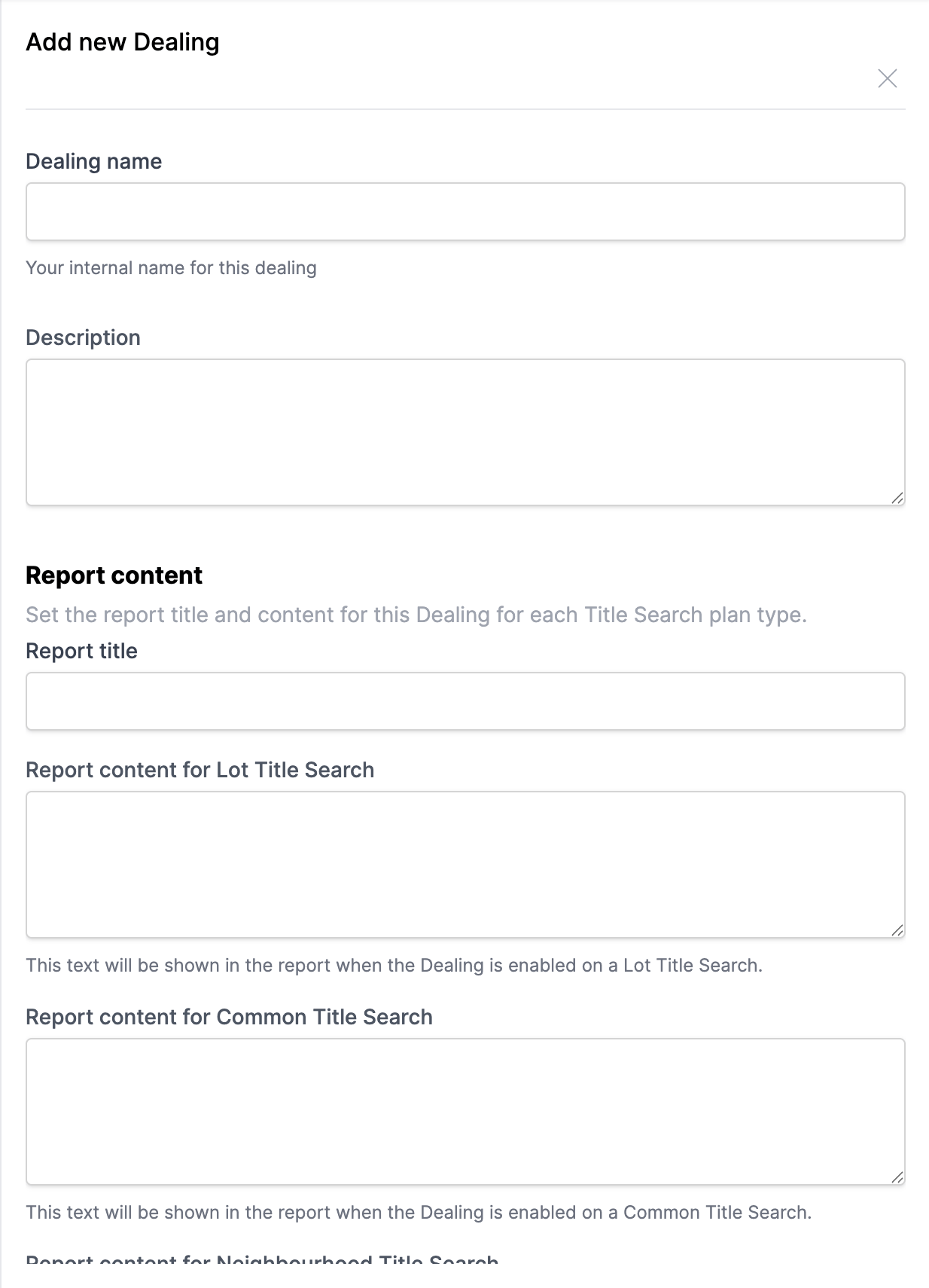
In addition to standard categories, you can create custom Dealing types for situations not covered by the default options.
Creating custom Dealings
To add a custom Dealing to your library:
- Enter a unique name for the Dealing type.
- Write the report title and content.
- Save to make it available across all reviews.
All custom Dealings are available on all property types.
Custom Dealing behaviour
Custom Dealings have specific characteristics:
- They are not automatically categorised and must be manually added if needed.
- They are not automatically extracted or enriched.
- They can be shared across all reviews in your account.
- They can be edited or removed at any time.
- They do not generate warnings if missing from contracts.
FAQ
What are Library Dealings?
Library Dealings are the standard Dealing categories in your account that control how different Dealing types appear in Reviews, including visibility defaults and Report content.
How do I customise a Dealing category?
Go to Settings > Library > Dealings. Select a Dealing category to change its default visibility, Report title, and Report content for each property type.
What does "prescribed" mean for a Dealing?
Prescribed Dealings are legally required to be disclosed in contracts. If the prescribed document is missing from a Title Search, Curia displays a warning during Review.
Can I create custom Dealing categories?
Yes, you can create custom Dealing categories for encumbrances not covered by the standard categories. Custom Dealings must be manually added during Review and are not automatically extracted.
How do I add a Dealing during Review?
On the Title Search tab, click "Add new entry". Select a Dealing from the Library dropdown, or click "Custom" to create a new custom Dealing.
How do I save a custom Dealing to the Library?
When you create a custom Dealing during Review, click "Add to library" at the bottom of the Dealing card. The Dealing will be saved to your Library for future use.